
TL;DR:
- Automating Power BI data refreshes involves scheduled updates, the on-premises data gateway, and event-driven triggers through Power Automate or the REST API.
- The refresh type depends on the dataset's storage mode, with Import mode supporting scheduled and incremental refreshes, while DirectQuery and Live Connection provide real-time data without scheduled refreshes.
You can fully automate Power BI data refreshes by combining three things: scheduled dataset refresh in Power BI Service, the On-Premises Data Gateway for local sources, and event-driven triggers via Power Automate or the Power BI REST API. That covers the vast majority of real-world BI environments.
Here is your immediate starting checklist:
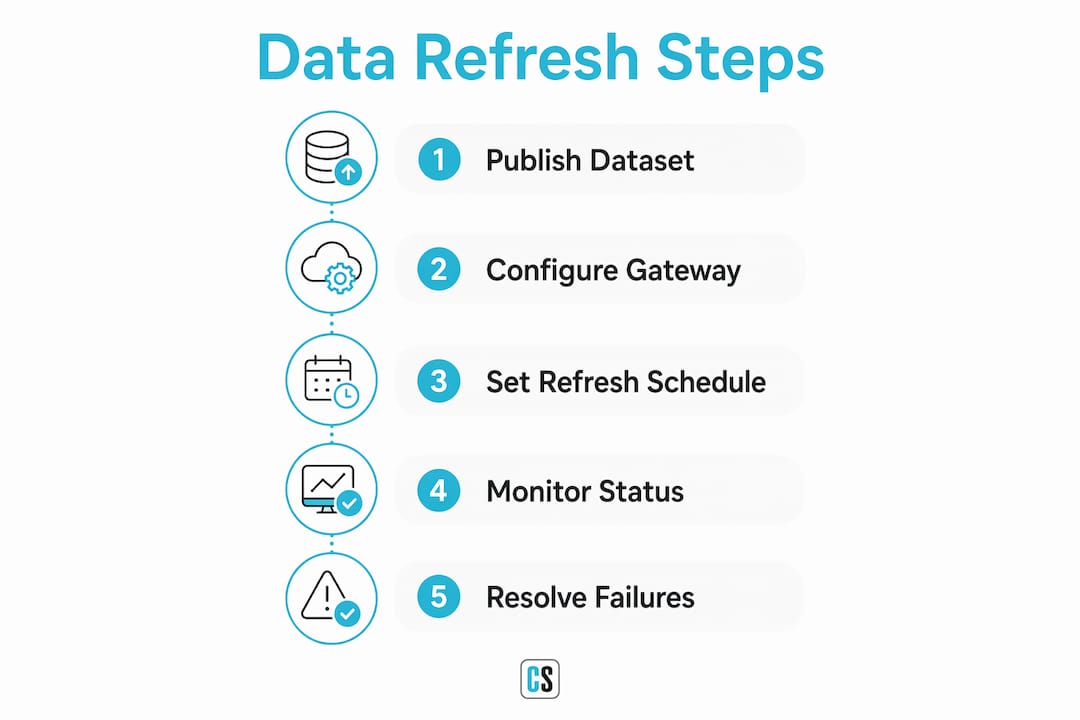
- Open Power BI Service → go to your Workspace → find the dataset → click the three-dot menu → Settings
- Under Scheduled refresh, toggle it on, set frequency and time zone, and add a failure notification email
- Under Data source credentials, authenticate each source and confirm privacy levels
- If your data lives on-premises, install and register the On-Premises Data Gateway first
- For large datasets (tens of millions of rows), configure incremental refresh via Power Query parameters before publishing
- For event-driven runs (e.g., after a pipeline completes), build a Power Automate flow or call the Power BI REST API
POST /datasets/{datasetId}/refreshes
Start with one high-value dataset. Validate the refresh end-to-end before touching anything else.
Table of Contents
- How does Power BI data refresh actually work?
- How do you set up scheduled refresh in Power BI Service?
- How do you configure incremental refresh for large datasets?
- When do you need the On-Premises Data Gateway?
- How do Power Automate and the REST API handle programmatic refresh?
- How do you monitor refresh jobs and fix common failures?
- What are the best practices for reliable, high-performance refresh?
- Key Takeaways
- The part most teams skip before they automate anything
- What PBRS adds when native Power BI scheduling is not enough
- Useful sources and next reads
- FAQ
How does Power BI data refresh actually work?
The refresh type available to you is determined entirely by the storage mode of your dataset. Getting this wrong is the most common reason a scheduled refresh either does nothing or fails silently.
Import mode pulls a full copy of your data into Power BI's in-memory engine. Every scheduled or incremental refresh re-runs your queries and replaces (or appends to) that copy. This is the mode where scheduled refresh, incremental refresh, and most automation patterns apply. The tradeoff: your data is only as fresh as your last refresh run.

DirectQuery sends live queries to your source system every time a report visual loads. There is no dataset to refresh on a schedule because no data is stored in Power BI. Instead, you get near-real-time data at the cost of query performance and source load. Automatic page refresh (available in Power BI Premium/Fabric) lets you configure a report page to re-query the source at a fixed interval, down to seconds.
Live Connection (Analysis Services or Power BI datasets) behaves similarly to DirectQuery at the report level. The semantic model lives outside the report, so you refresh the upstream model, not the Power BI report itself.
Push and streaming datasets receive data via API calls from external systems. They update continuously and do not use scheduled refresh at all.
| Storage mode | Refresh type | Typical use case |
|---|---|---|
| Import | Scheduled, incremental, manual | Historical analysis, large datasets, complex models |
| DirectQuery | Live queries (no scheduled dataset refresh) | Near-real-time dashboards, source-side compute |
| Live Connection | Refresh the upstream model | Shared semantic models, Analysis Services |
| Push / Streaming | API-driven, continuous | IoT, real-time event feeds |
| Composite | Mixed (Import + DirectQuery tables) | Hybrid: some tables cached, some live |
The practical takeaway: if you are on Import mode and want fresh data, you must schedule or trigger a refresh. Everything in the next several sections applies to you.
How do you set up scheduled refresh in Power BI Service?
This walkthrough assumes your dataset is already published to Power BI Service and your data sources are accessible (either cloud-based or via a configured gateway).
Step-by-step setup
-
Navigate to your dataset. In Power BI Service, open the Workspace containing your dataset. Hover over the dataset name and click the three-dot menu, then select Settings.
-
Configure data source credentials. Expand the Data source credentials section. For each listed source, click Edit credentials, choose the authentication method (OAuth2, Basic, Windows, etc.), and set the privacy level. Mismatched privacy levels are a frequent cause of refresh failures that produce cryptic error messages.
-
Map to a gateway (on-premises sources only). If any source is on-premises, the Gateway connection section will appear. Select your registered gateway and map each data source name to the corresponding gateway data source. The connection string in Power BI Desktop must match exactly what is registered on the gateway.
-
Enable scheduled refresh. Expand Scheduled refresh and toggle it on. Set the refresh frequency (daily or weekly), add specific times, and select the correct time zone. Off-peak windows (late night or early morning) reduce contention with user-facing report queries.
-
Set failure notifications. Under Send refresh failure notifications to, add the dataset owner's email and any on-call alias. Do not leave this blank.
-
Save and verify. Click Apply. Return to the dataset in the Workspace, click the three-dot menu, and select Refresh now to trigger a manual run. Check Refresh history immediately after to confirm the status shows Completed.
License and capacity considerations
Before scheduling, confirm who owns the dataset and what license they hold. Scheduled refresh requires the dataset owner to have at least a Power BI Pro license, or the dataset must reside in a Premium or Fabric capacity workspace. A dataset owned by a free-license user in a shared workspace will not refresh on schedule.
Pro Tip: Align your refresh windows with your upstream ETL or data warehouse load completion times. A refresh that fires at 6:00 AM when the warehouse load finishes at 6:30 AM will consistently pull yesterday's data. Build in a 15–30 minute buffer, or switch to an event-driven trigger that fires only after the load job confirms completion.
How do you configure incremental refresh for large datasets?
Incremental refresh is Power BI's answer to the "full refresh takes 45 minutes" problem. Instead of re-importing every row on every run, it partitions your table by date and only refreshes the recent window. The setup happens in two places: Power BI Desktop (Power Query parameters) and Power BI Service (the incremental refresh policy).
Setup sequence
-
Create the required parameters in Power Query. In Power BI Desktop, open Power Query Editor and create two parameters named exactly
RangeStartandRangeEnd, both of type Date/Time. These names are case-sensitive and non-negotiable. -
Filter your date column. Apply a filter on your main date column using these parameters: rows where the date is greater than or equal to
RangeStartand less thanRangeEnd. Power BI uses this filter to determine which partition to query on each refresh. -
Verify query folding. Right-click the filter step in Power Query and check whether View Native Query is available. If it is, the filter folds to the source, which is critical for performance. Without query folding, incremental refresh still works but loses most of its speed advantage.
-
Publish the dataset to Power BI Service. Publish as normal. The parameters you set in Desktop are placeholders; the actual partition ranges are managed by the service.
-
Configure the incremental refresh policy. In Power BI Service, go to the dataset settings. Under Incremental refresh, define the Store rows in the last window (e.g., 3 years) and the Refresh rows in the last window (e.g., 3 days). The store window is your total historical data; the refresh window is what gets re-queried on each run.
-
Trigger the first refresh. The initial refresh imports the full historical range and creates all partitions. Subsequent refreshes only touch the recent window.
Testing before production
Use a short date range (two to four weeks of data) in a development workspace to validate that partitions are created correctly and that the refresh window behaves as expected. Check the refresh history in Power BI Service to confirm partition-level job details. Widen the range only after the partition logic is confirmed.
For a concrete illustration: a dataset with 50 million rows might take 40 minutes on a full Import refresh. With incremental refresh configured to a 3-day window, the same dataset typically refreshes in under 5 minutes, because only the recent partition is re-queried.
Pro Tip: Test your incremental refresh policy in a dedicated dev workspace before promoting to production. A misconfigured retention window can silently drop historical partitions, and recovering them requires a full re-import.
When do you need the On-Premises Data Gateway?
The
is required any time Power BI Service needs to reach a data source that is not publicly accessible on the internet: SQL Server on a corporate network, Oracle, SAP, file shares, and similar. It acts as a secure outbound relay, so your servers are never directly exposed.Installation and configuration checklist
- Download the standard gateway installer from the Microsoft Power Platform admin center (not the personal mode gateway, which does not support scheduled refresh for shared datasets)
- Install on a stable, always-on host — a dedicated server or VM, not a developer laptop; the machine must be running whenever a refresh is scheduled
- Register the gateway with your Microsoft 365 tenant using an account that has gateway admin permissions
- Add data sources in the Power Platform admin center: for each source, enter the server name, database name, and credentials exactly as they appear in your Power BI Desktop connection strings
- Map datasets to the gateway in Power BI Service dataset settings under Gateway connection
Networking and security
Open outbound port 443 (HTTPS) and port 5671/5672 for Azure Service Bus relay traffic. The gateway does not require inbound firewall rules. Use a dedicated service account with the minimum permissions needed to read the source data, and rotate credentials on a schedule aligned with your organization's security policy.
Scaling and high availability
For production environments with multiple datasets or high refresh frequency, configure a gateway cluster: install the gateway on two or more machines and register them under the same cluster name. Power BI Service distributes refresh jobs across cluster members automatically. If one node goes offline, the others continue serving requests.
Pro Tip: Keep your gateway version current. Microsoft releases gateway updates monthly, and version mismatches between the gateway and certain data source drivers are a leading cause of cryptic authentication failures. Enable automatic updates in the gateway app settings.
How do Power Automate and the REST API handle programmatic refresh?
Scheduled refresh covers most use cases, but two scenarios demand something more: refreshes that must fire only after an upstream pipeline completes, and refreshes that need to be triggered by an external system. Both time-based and event-based triggers are worth configuring for robust automation — event triggers prevent reports from running against incomplete data.
Power Automate pattern
- Create a new flow in Power Automate. Choose a trigger: either a Recurrence trigger (time-based) or a connector event such as "When a file is created" (SharePoint/OneDrive) or an HTTP request from your data pipeline.
- Add the Power BI action "Refresh a dataset." Select your workspace and dataset from the dropdowns. This calls the REST API under the hood.
- Add a delay or polling step if you need to wait for the refresh to complete before taking the next action (e.g., sending an email or triggering a downstream dataset).
- Add a failure branch. Use a Condition or Scope block to check whether the refresh succeeded. On failure, send a Teams or email notification with the dataset name and timestamp.
For data-driven scheduling scenarios — where the refresh window or target dataset changes based on a business calendar — Power Automate flows can read from a SharePoint list or SQL table to determine which datasets to refresh and when.
Power BI REST API pattern
The REST API gives you full programmatic control. The core call is:
POST https://api.powerbi.com/v1.0/myorg/datasets/{datasetId}/refreshes
To check status, poll:
GET https://api.powerbi.com/v1.0/myorg/datasets/{datasetId}/refreshes
Authentication requires either a user token (OAuth2 with delegated permissions) or a service principal (Azure AD app registration with the Dataset.ReadWrite.All permission granted by a tenant admin). Service principals are the right choice for unattended, production automation.
Permission note: Service principal access to Power BI workspaces must be enabled at the tenant level in the Power BI admin portal under Developer settings → Allow service principals to use Power BI APIs. Without this, API calls return 401 errors regardless of the app registration configuration.
Rate limits: Power BI Pro datasets are limited to 8 scheduled refreshes per day via any method, including API calls. Premium and Fabric capacities allow up to 48 scheduled refreshes per day.
Pro Tip: Build idempotency into your retry logic. Before triggering a new refresh via the API, call the GET refreshes endpoint and check whether a refresh is already in a "Running" or "Queued" state. Firing a second refresh while one is already running wastes capacity and can produce inconsistent results.
Event-based vs. time-based triggers
Use a time-based schedule when your source data loads on a predictable cadence and you can build in a safe buffer. Use an event-based trigger when the upstream load time varies or when shipping a report against partial data would cause real business harm. A modern automated reporting pipeline typically runs five stages: pull, validate, refresh, explain, and decide. Four of those five are automatable, but the trigger that kicks off the chain should fire only after the pull and validate stages confirm clean data.
How do you monitor refresh jobs and fix common failures?
Refresh history is your first diagnostic tool. In Power BI Service, go to the dataset's three-dot menu and select Refresh history. Each entry shows the start time, duration, status (Completed, Failed, Cancelled), and an error message for failures. For datasets in Premium or Fabric capacities, you get partition-level detail.
Common failures and what to do
- Credential expiry: The error message usually references "invalid credentials" or "authentication failed." Go to dataset settings → Data source credentials → Edit credentials and re-authenticate. Set a calendar reminder to rotate credentials before they expire.
- Gateway offline: The error references "gateway" or "on-premises data source." Check that the gateway Windows service is running on the host machine and that the machine itself is online. In the Power Platform admin center, the gateway status shows as Offline when unreachable.
- Query timeout: Long-running queries hit the 2-hour timeout limit for Import refresh. Optimize the query (push filters to the source, enable query folding, reduce row counts), or move to incremental refresh to shrink the query window.
- Permission errors: "The caller does not have permission" typically means the dataset owner's account lost access to the data source, or a service principal's workspace role was removed. Verify the dataset owner has at least Member access to the workspace and read access to all data sources.
- Capacity throttling: In shared capacity (Pro), if too many datasets refresh simultaneously, jobs queue and may time out. Stagger refresh times across datasets to avoid contention.
Automated alerting
Build a Power Automate flow that monitors refresh status and sends a Teams message or email when a failure is detected. Include the dataset name, workspace, job ID, and the first line of the error message in the notification body. Routing alerts to a named owner rather than a generic inbox cuts mean time to resolution significantly.

Pro Tip: Include the refresh job ID in every failure alert. When you open a support ticket with Microsoft or investigate in the admin portal, the job ID is the fastest way to pull the exact error trace. A generic "refresh failed" message with no ID sends you on a 20-minute scavenger hunt.
What are the best practices for reliable, high-performance refresh?
The benefits of automation in Power BI compound quickly when the underlying model is clean. They evaporate just as fast when it is not. Teams that adopt well-structured automation reduce manual data work significantly in typical implementations, with mature AI-driven pipelines reaching substantial reduction in report generation time.
Model and query optimization
- Enable query folding wherever possible. Transforms that fold to the source run at the database engine, not in Power Query's in-memory engine, which is dramatically faster for large tables.
- Push heavy transforms to the warehouse. Aggregations, joins, and business logic belong in a SQL view or stored procedure, not in Power Query M code. Querying a pre-aggregated view keeps reports current and cuts refresh time.
- Minimize imported columns and rows. Only import what your reports actually use. Every extra column adds memory and refresh time.
- Use a single semantic layer. Defining metrics once in a shared dataset (rather than duplicating DAX across reports) means one refresh feeds many reports, and metric definitions stay consistent.
Frequency limits and scheduling strategy
Power BI Pro allows up to 8 scheduled refreshes per day; Premium and Fabric capacities allow up to 48 scheduled refreshes per day. These limits apply per dataset, and API-triggered refreshes count against the same quota.
For most operational reporting, several daily refreshes on Pro is sufficient. If your business genuinely needs sub-hourly data, DirectQuery or composite models are the right architectural choice, not hammering the refresh limit.
Stagger refresh times across datasets. If 20 datasets all refresh at 7:00 AM, they compete for the same capacity resources. Spread them across a 90-minute window to avoid queuing.
Statistic callout: Mature automated reporting setups with structured pipelines and templates in place reduce report generation time very significantly. The gains come not from faster hardware but from eliminating the manual steps between data load and report delivery.
Operational controls
Skipping foundational work — reconciled source data, agreed metric definitions, documented transformation logic — is the most common cause of automation failures. Automation amplifies upstream data problems. Before you automate a report, confirm that the underlying data is trustworthy and that the metrics it uses are defined and agreed upon by stakeholders.
For high-stakes reports (board decks, financial close packages), include a human review gate before distribution. Generate the report as a draft, route it to the report owner for a brief sign-off, then release. Automation handles the repeatable work; human judgment handles the final call.
Key Takeaways
Automating Power BI data refresh reporting requires four things working together: the right storage mode, a configured gateway for on-premises sources, a validated schedule or event trigger, and monitoring that catches failures before stakeholders do.
| Point | Details |
|---|---|
| Match storage mode to refresh type | Import datasets support scheduled and incremental refresh; DirectQuery and Live Connection do not use scheduled dataset refresh. |
| Pro vs. Premium refresh limits | Power BI Pro allows up to 8 scheduled refreshes per day; Premium and Fabric capacities allow up to 48 scheduled refreshes per day. |
| Use event-based triggers for pipelines | Fire refreshes after upstream data loads complete, not on a fixed clock, to avoid reports running against partial data. |
| Incremental refresh for large datasets | Configure RangeStart/RangeEnd parameters in Power Query and set the policy in Power BI Service to refresh only the recent partition. |
| ChristianSteven Software PBRS | PBRS extends native Power BI scheduling with enterprise delivery, managed retries, and distribution by user group — without replacing the gateway or scheduled refresh. |
The part most teams skip before they automate anything
There is a version of this conversation that skips straight to Power Automate flows and REST API calls, and it is the version that ends with a 2:00 AM alert about a broken refresh that nobody can diagnose because nobody documented what the report is actually supposed to show.
The most durable automation setups start with a boring prerequisite: a reconciled data source, a written metric definition, and one person who owns the report end-to-end. Not a team. One person. When a refresh fails at 2:00 AM, you want one phone number to call, not a committee.
The second thing teams underestimate is the human review gate. Automation is excellent at the repeatable: pulling data, validating row counts, rebuilding visuals, even drafting commentary. It is not good at noticing that the revenue figure is 40% higher than last month because someone changed a fiscal year mapping in the warehouse. A governed warehouse with a single semantic layer and a pre-distribution review step catches that. A fully automated pipeline with no human checkpoint ships it to the board.
Start with one report. Run the automated version in parallel with the manual version for two weeks. When the numbers match consistently, retire the manual process. That parallel validation step feels slow, but it is the only way to build the organizational trust that lets you eventually automate 30 reports instead of one.
The technology in this guide works. The gateway, the incremental refresh, the Power Automate flow — all of it is reliable when configured correctly. The failure mode is almost never the technology. It is the assumption that clean automation can compensate for messy data.
What PBRS adds when native Power BI scheduling is not enough
Native Power BI scheduling gets you far. But enterprise reporting teams consistently run into the same gaps: no built-in way to export reports to PDF or Excel on a schedule, no managed retry logic when a refresh fails, no per-user or per-group delivery, and no orchestration across datasets that depend on each other.

PBRS by ChristianSteven Software fills those gaps without replacing what Power BI Service already does well. It works alongside your existing scheduled refresh and gateway configuration, adding a layer of enterprise delivery on top: export to PDF, Excel, Word, or CSV; distribute to individuals or groups based on data-driven rules; retry failed jobs automatically; and orchestrate refresh sequences across dependent datasets. For teams running Power BI automated exports at scale, PBRS removes the manual handoff between "refresh complete" and "report in the right inbox."
ChristianSteven Software has spent more than two decades building BI automation for enterprises, holds SOC 2 Type II certification, and supports Power BI, SSRS, Tableau, and Crystal Reports environments. If your team has outgrown what native scheduling can do, explore PBRS and see what enterprise-grade orchestration looks like in practice.
Useful sources and next reads
The following resources are worth bookmarking as you implement or troubleshoot your refresh automation. Tenant-level settings (refresh limits, service principal access, gateway permissions) vary by organization, so always verify against your own admin portal.
- Data refresh in Power BI — Microsoft's primary reference for all refresh types, storage modes, and troubleshooting guidance
- Configure scheduled refresh — step-by-step Microsoft documentation for the scheduled refresh UI, credential settings, and failure notifications
- Power BI REST API reference — full API documentation including the POST refreshes endpoint, authentication requirements, and rate limits
- How to refresh data in Power BI — ChristianSteven Software's practical walkthrough for dataset refresh scenarios
- Power BI enterprise refresh and delivery — best-practice guidance for scaling refresh and report delivery in enterprise environments
- Microsoft Fabric Community — active forum for Power BI-specific questions on refresh, gateway, and capacity issues
A note on tenant settings: refresh frequency limits, service principal API access, and gateway cluster permissions are all configurable at the tenant level by your Power BI admin. The defaults described in this guide reflect Microsoft's published documentation, but your organization may have overridden them. Check the Power BI admin portal under Tenant settings before assuming any limit applies to your environment.
FAQ
How do you automatically refresh data in Power BI?
Publish your dataset to Power BI Service, open the dataset settings, and enable Scheduled refresh under the refresh section. Set the frequency, time zone, and failure notification email, then authenticate your data sources under Data source credentials. For on-premises sources, install and configure the On-Premises Data Gateway first.
What tool can I use to automatically update reports with new data?
Power BI Service handles scheduled dataset refresh natively for cloud sources. For on-premises data, the On-Premises Data Gateway is required. For event-driven or programmatic refresh, Power Automate and the Power BI REST API both support triggering refreshes from external systems. ChristianSteven Software's PBRS adds enterprise delivery, managed retries, and per-user distribution on top of native scheduling.
Can you automate a data refresh in Excel?
Excel supports automatic refresh of linked data types through workbook refresh settings, but this is workbook-level automation, not platform-level dataset scheduling. Power BI Service's scheduled refresh is a separate, more governed system designed for shared datasets and organizational reporting.
Which tool is used for scheduled data refreshing in Power BI?
Power BI Service is the primary tool for scheduled dataset refresh, supporting up to 8 scheduled refreshes per day on Pro licenses and up to 48 scheduled refreshes per day on Premium or Fabric capacities. Power Automate and the Power BI REST API extend this with programmatic and event-driven triggers for more complex orchestration needs.
What is incremental refresh and when should you use it?
Incremental refresh partitions a large Import-mode dataset by date and refreshes only the recent window on each run, rather than re-importing the full table. Use it when your dataset has tens of millions of rows, your full refresh takes more than a few minutes, or your source system cannot handle repeated full extracts. Configure it by creating RangeStart and RangeEnd parameters in Power Query before publishing to Power BI Service.