
For most Power BI monitoring needs, use native dashboard alerts for KPI thresholds, extend them with Power Automate for team routing, and reserve Data Activator for near-real-time or complex rule logic. The choice comes down to three things: which visual holds the data, how often the dataset refreshes, and your licensing tier. When guaranteed delivery or advanced formatting matters more than DIY flows, an automation product like PBRS from ChristianSteven Software fills the gap.
TL;DR:
- Power BI alerts only work on card, KPI, or gauge visuals that refresh on a schedule, not on live data or unsupported visuals.
- Alerts evaluate data only when the dataset refreshes, so understanding your refresh schedule is key to avoiding missed notifications.
- Using Power Automate allows team-wide notifications and responses but still relies on refresh timing and may need throttling and permission management.
- Data Activator offers more complex, real-time monitoring for patterns across multiple signals but requires additional licensing on Fabric capacity.
- For guaranteed delivery, formatting, and audit trails, dedicated tools like PBRS are preferable over native alerts or Power Automate flows.
Table of Contents
- How to Set Up a Power BI Data Alert on a Dashboard Tile
- Integrating Power BI Alerts With Power Automate for Team Notifications
- Data Activator vs. Native Alerts vs. Streaming Datasets
- Building an Alert Program That Doesn't Fall Apart in a Year
- Why Your Power BI Alert Isn't Firing
- What Two Decades of BI Automation Teaches About Alert Reliability
- What Actually Matters When You're Choosing an Alert Strategy
- Turn Power BI Alerts Into Guaranteed, Formatted Delivery With PBRS
- Sources
- FAQ
How to Set Up a Power BI Data Alert on a Dashboard Tile
Before you build anything, check three prerequisites. You need a tile showing a card, KPI, or gauge visual since alerts only work on single-value tiles, and not full reports or matrix visuals. You need a dataset on a refresh schedule, because an alert can only evaluate data that actually changes. And you need a Power BI Pro or Premium Per User license, since alerts aren't available on the free tier's shared dashboards.
Here's the setup process:
- Open the dashboard in the Power BI service (not Desktop) and hover over the card, KPI, or gauge tile you want to monitor.
- Click the ellipsis (three dots) in the tile's top corner and select "Manage alerts."
- Choose "Add alert rule" and set your condition: above, below, or equal to a specific value.
- Set the alert frequency, which governs how often it can notify you (at most once an hour or once a day).
- Choose your notification method: in-app only, or in-app plus email.
- Save the rule and confirm it appears under "Manage alerts" for that tile.
Test it before trusting it. Temporarily set the threshold to a value you know the current data will cross, wait for the next scheduled refresh, and confirm the notification lands in your Power BI notification center or inbox. Then reset the threshold to its real value.
One thing trips up almost everyone the first time: alerts evaluate only when the dataset refreshes, rather than on a live clock. If your dataset refreshes nightly, your alert checks once a night, no matter how the frequency setting is configured. Understanding how Power BI refresh scheduling works will save you from chasing a phantom bug later.
Pro Tip: Name your test alert something obvious like "TEST — delete after Friday" so it doesn't linger in production and confuse the next analyst who opens Manage Alerts.
Integrating Power BI Alerts With Power Automate for Team Notifications
A personal email alert is fine for one person watching one number. It stops being fine the moment three teams need to react to the same threshold breach. That's where Power Automate earns its place: it listens for the "When a data-driven alert is triggered" event and turns a single notification into a coordinated response.
The trigger passes along the tile's title, the alert rule, and the value that caused it to fire. From there, Power Automate flows can push that alert into wherever your team actually works:
- Post a formatted message into a Microsoft Teams channel so the whole team sees it at once.
- Escalate to a manager's email if the same alert fires twice in one day.
- Create a ticket in a service desk system automatically, skipping the manual triage step.
- Insert a record into a SQL database to build an audit trail of every breach.
- Send an SMS through a connector like Twilio for after-hours, high-severity conditions.
A few design habits keep these flows from turning into a mess six months later. Build in throttling so a flapping metric doesn't spam a channel fifty times in an hour. Make actions idempotent, so a duplicate trigger doesn't create two tickets for the same event. Map permissions carefully, since a flow often runs under a service account with broader access than the analyst who built it.
Pro Tip: Assign one named owner per flow in its description field. "Owned by Finance Ops, updated March 2026" saves someone from deleting a flow they don't recognize during a cleanup pass.
Data Activator vs. Native Alerts vs. Streaming Datasets
Native alerts and Data Activator solve different problems, even though both get called "Power BI alerts" in casual conversation. Here's how the layers actually stack up:
- Native dashboard alerts handle single-threshold checks on one tile, evaluated at dataset refresh, available on Power BI Pro or Premium Per User.
- Data Activator (Microsoft Fabric) handles more complex conditions, time-window logic, and pattern detection across multiple signals, with faster evaluation than a standard refresh cycle, but it runs on Fabric capacity, which carries its own licensing cost.
- Streaming datasets or DirectQuery support near-continuous updates for operational or IoT-style monitoring, though performance depends heavily on the source system and needs real load testing before you trust it in production.
Latency is the deciding factor most teams underweight. A native alert tied to a dataset that refreshes every six hours will never feel "real time," no matter how the rule is written. If your business question is "did this single number cross a line since last night," native alerts are enough. If it's "tell me the moment three related conditions align within a ten-minute window," you've outgrown native alerts and need Data Activator. The migration trigger is usually a support ticket, not a plan: teams move when someone asks why an alert took six hours to fire on something that mattered in six minutes.
Building an Alert Program That Doesn't Fall Apart in a Year
Alerts multiply fast, and a dashboard with forty unnamed rules is worse than no alerts at all. A working program needs structure from day one, and it doesn't take much:
- Name every alert with a pattern that states the metric, the condition, and the owner, such as "Revenue_Below_Target_Owner_Finance."
- Assign one named owner per alert, not a team distribution list, so someone is accountable when it breaks.
- Build tiered thresholds instead of one trigger point: a warning level, a critical level, and an emergency level that escalates differently.
- Document the business reason for each alert in a shared location, not just in the tile's tooltip.
- Review the full list quarterly and delete anything nobody has acted on in three months.
Scale discipline matters as much as naming discipline. Personal alerts are fine for one analyst watching a pet metric, but critical business signals belong in a governed group notification, not fifteen individual email rules that drift out of sync the moment someone changes the threshold. This mirrors a pattern seen in automated monitoring systems generally: unmanaged alert volume trains people to ignore notifications, which defeats the entire point of setting them up.
Pro Tip: If an alert hasn't fired in six months, ask whether the threshold is wrong or the metric stopped mattering. Both answers usually mean it's time to change something, not leave it alone.
Why Your Power BI Alert Isn't Firing
Start with the refresh schedule before you assume the rule itself is broken. Since alerts only check data at dataset refresh, a stalled or paused refresh means the alert has nothing new to evaluate, no matter how the threshold is set.
Work through this checklist in order:
- Confirm the dataset actually refreshed at the expected time by checking its refresh history in the Power BI service.
- Verify the tile is a supported visual (card, KPI, or gauge) since alerts silently don't appear as an option on unsupported visual types.
- Check whether the frequency cap already used up its allowance, since an hourly cap means a second breach within the same hour won't send a second notification.
- If you're using Power Automate, open the flow's run history and look for failed runs, expired connections, or throttling errors.
- Rule out a licensing lapse; a downgraded Pro license or an expired trial can quietly disable alerting for a whole workspace.
- Check the Power BI service health status page for outages affecting alert delivery specifically.
What Two Decades of BI Automation Teaches About Alert Reliability
ChristianSteven Software has spent more than 20 years automating business intelligence delivery across Power BI, Tableau, SSRS, and Crystal Reports, backed by SOC 2 Type II certification. Three lessons show up repeatedly in enterprise environments.
First, test every alert path end to end, not just the trigger. A notification that fires but never reaches the right inbox is functionally the same as no alert.
Second, centralize alert logging somewhere outside individual inboxes so a compliance review doesn't depend on one person's email history.
Third, once an alert has a service-level agreement attached to it, hand-built flows stop being enough. That's usually the moment a team needs event-driven automation with guaranteed delivery, which is exactly where a product like PBRS fits.
What Actually Matters When You're Choosing an Alert Strategy
Most guidance on Power BI alerts treats every notification as equally important, which is backwards. The real skill isn't setting up alerts. It's deciding which ten metrics deserve one, because a business that alerts on everything trains its own people to ignore all of it.
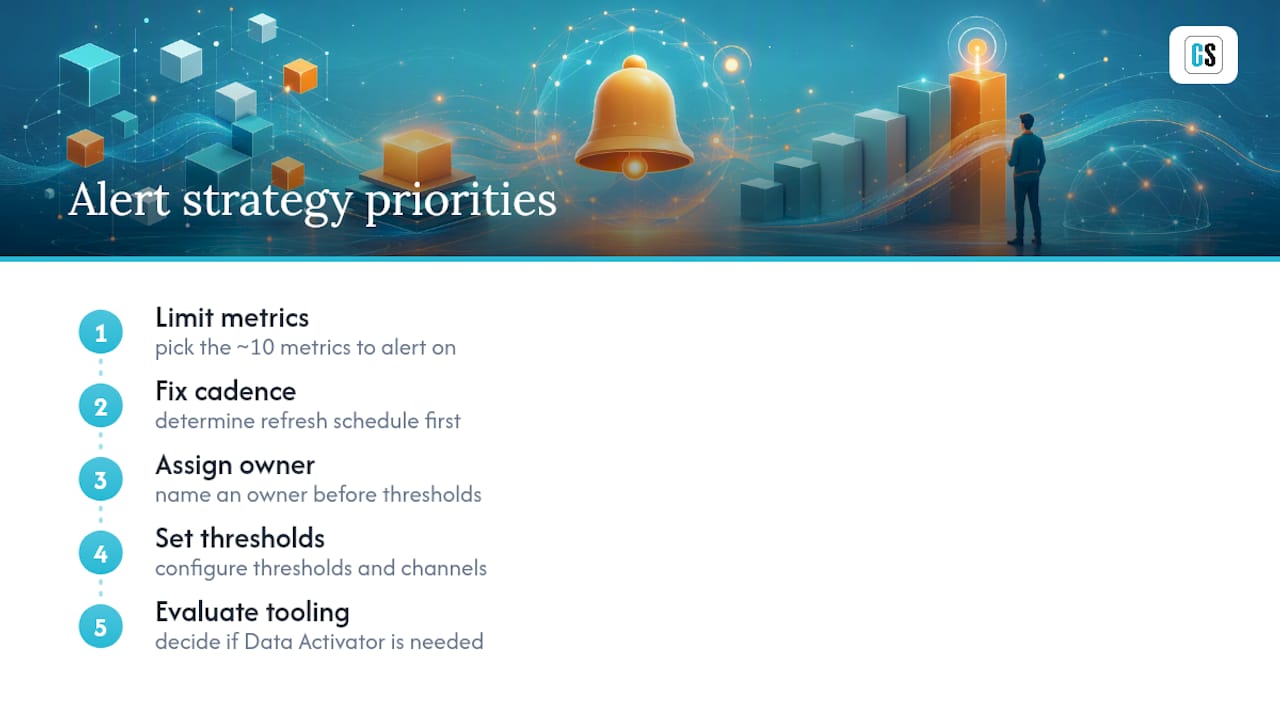
The conventional advice also underweights refresh cadence as a design constraint, treating it as a technical footnote instead of the thing that actually determines whether "real time" monitoring is even possible. Fix the refresh schedule question first, before touching threshold values or notification channels. Everything else, including whether you need Data Activator at all, follows from that answer.
If there's one thing worth prioritizing above the rest, it's ownership. An alert with no named owner degrades into background noise within a quarter, and by the time someone notices, the threshold has been wrong for months. Assign the owner before you assign the threshold, not after.
— Christian Ofori-Boateng
Turn Power BI Alerts Into Guaranteed, Formatted Delivery With PBRS
Native alerts and Power Automate cover a lot of ground, but neither one guarantees delivery, keeps a full audit trail, or exports a formatted PDF the moment a threshold breaks. That's the gap report automation software was built to close for teams that need alert-driven reporting to actually reach the right person, in the right format, every time.

Such automation software adds event-driven triggers on top of existing schedules, so a KPI breach can kick off an automated export to PDF or Excel and deliver it to email, cloud storage, a database, or a collaboration tool without requiring constant monitoring. It logs every delivery, which matters when a manager asks who saw an alert and when. Choose this kind of automation over a DIY flow setup when you need guaranteed delivery, advanced formatting, or an audit trail that satisfies compliance rather than best-effort routing.
See how it handles exporting and scheduling Power BI reports, or check out its advanced automation features built to extend or replace Power Automate for enterprise scenarios, and start a trial to see it against your own dashboards.
Sources
- How to Configure Alerts in Power BI (Complete Guide 2026)
- Setting Up Data Alerts in Power BI | Power BI Consulting
FAQ
Can Power BI Generate Alerts on Its Own?
Yes. Power BI can generate alerts natively on card, KPI, and gauge tiles without any add-on tool, evaluating them each time the underlying dataset refreshes.
What's the Difference Between an Alert and a Notification?
An alert is the rule you configure, such as "notify me if revenue drops below a specific threshold." A notification is what you actually receive, delivered in-app or by email once that rule's condition is met.
Will Power BI Still Be in Demand for Data Analysts in 2026?
Power BI remains one of the most widely deployed business intelligence platforms in enterprise environments, and demand for analysts who can build alerting and automation workflows around it, not just dashboards, continues to grow.
Can You Learn Power BI Alert Setup in Two Days?
You can learn the mechanics of native alert setup in an afternoon since it's a menu-driven process on a single tile. Building a governed program with tiered thresholds, ownership, and Power Automate integration takes longer and benefits from real practice on live data.
When Should I Use PBRS Instead of Power Automate for Alerts?
Choose PBRS when you need guaranteed delivery, formatted exports like PDF or Excel, or a centralized audit log, since Power Automate flows are powerful but don't natively guarantee delivery or retain a compliance-ready history.