
Keep raw files under 10 MB for near-universal compatibility, or under 18 MB if you know the recipient uses a consumer inbox with a 25 MB cap. The rule that overrides every other number: the recipient's server limit wins, not yours. Gmail allows 25 MB out and 50 MB in, Exchange Online's defaults sit well above that, and a plain on-premises Exchange Server install still defaults to just 10 MB. Because Base64 encoding inflates whatever you attach by about a third, a file that looks fine on your desktop can push a message over the ceiling before it ever reaches the recipient's server.
- Under 5 MB: attach it, no second thought needed.
- 5 to 10 MB: fine for most providers, but test with picky corporate recipients first.
- Over 10 MB: send a link instead of a file.
Key Takeaways
The recipient's server limit always overrides the sender's limit, so plan every large file transfer around the smallest cap in the chain, not the largest.
| Point | Details |
|---|---|
| Recipient limit wins | The smaller of sender and receiver caps decides delivery, not the sender's own limit. |
| Budget for encoding | Multiply raw file size by 1.34 to estimate the actual encoded size before sending. |
| Exchange defaults are low | On-premises Exchange Server defaults to 10 MB unless an admin raises it. |
| Link over attach past 10 MB | Cloud links, Mail Drop, or managed file transfer beat attachments once files grow large. |
| Automate recurring reports | ChristianSteven Software's PBRS delivers scheduled Power BI reports via secure links instead of bulky email attachments, avoiding bounce and audit gaps. |
Table of Contents
- What Are the Current Email Attachment Limits by Provider?
- What Actually Counts Toward the Message Size Limit?
- How Does Base64 Encoding Inflate File Sizes?
- Why Do Attachments Still Bounce Under the Limit?
- What's the Best Way to Send Files Larger Than 25MB?
- Can You Increase the Attachment Limit in Outlook or Exchange?
- What File Types and Security Filters Block Attachments?
- When Is Emailing a Report the Wrong Approach Entirely?
- A Reporting Engineer's Take on Attachment Limits
- Skip the Attachment Problem Entirely With Automated Report Delivery
- Where to Verify Current Limits and Encoding Math
- Sources
- FAQ
What Are the Current Email Attachment Limits by Provider?
Every major provider publishes a number, but the number that matters is the smaller of two: what you're allowed to send and what the recipient is allowed to receive. Gmail's consumer accounts cap outbound messages at 25 MB and accept up to 50 MB inbound, though Google Workspace Enterprise Plus tenants can raise attachment ceilings further with admin approval, a change worth flagging for 2026 because it's easy to assume the classic 25 MB figure still applies everywhere in Google's ecosystem. It doesn't, once an admin has touched the settings.
Microsoft's world splits into two very different defaults. Exchange Online, the cloud backbone behind Microsoft 365, ships with documented send and receive limits that admins can adjust, and many IT teams intentionally keep the ceiling lower than the platform's upper bound to protect mailbox performance. Outlook.com, the free consumer version, holds to a stricter 20 MB cap with no admin panel to change it. Classic on-premises Exchange Server, still running in plenty of regulated industries, defaults to a tight 10 MB limit that catches new IT hires off guard every year.
Yahoo Mail and AOL Mail, both under the same corporate umbrella, cap attachments at 25 MB with no built-in cloud fallback comparable to Gmail's Drive integration. Apple's iCloud Mail caps inline attachments at 20 MB, but Mail Drop kicks in automatically and swaps the file for an expiring download link good for files up to 5 GB, arguably the most generous built-in workaround among the mainstream consumer providers. ProtonMail, built around end-to-end encryption, limits attachments to 25 MB per message and encrypts them client-side before they ever leave your device. Zoho Mail sits in familiar territory too, at 20 MB for free accounts and higher for paid tiers.
A few patterns stand out across that table. Consumer inboxes cluster tightly around 20 to 25 MB with zero flexibility, while enterprise platforms like Exchange Online and Google Workspace hand the dial to an administrator, for better or worse. On-premises Exchange remains the outlier on the low end, a legacy default that trips up anyone assuming cloud-era numbers apply everywhere.
What Actually Counts Toward the Message Size Limit?
The cap doesn't just apply to your attached file. It applies to the entire encoded message, which means the file is competing for space with several other things you probably never think about.
- The encoded attachment itself, inflated by roughly a third once Base64 gets involved.
- The message body, especially if it's formatted HTML rather than plain text.
- Inline images embedded directly in the body, not linked externally.
- Your email signature, particularly one with an embedded logo or banner image.
- MIME headers and boundary markers that structure the message for transmission.
A corporate signature with a high-resolution logo can quietly add 50 to 200 KB to every message you send, a rounding error alone but a real bite once you're already close to a 25 MB ceiling. Attach three files that individually look small and they all count against the same shared total, not three separate budgets.
How Does Base64 Encoding Inflate File Sizes?
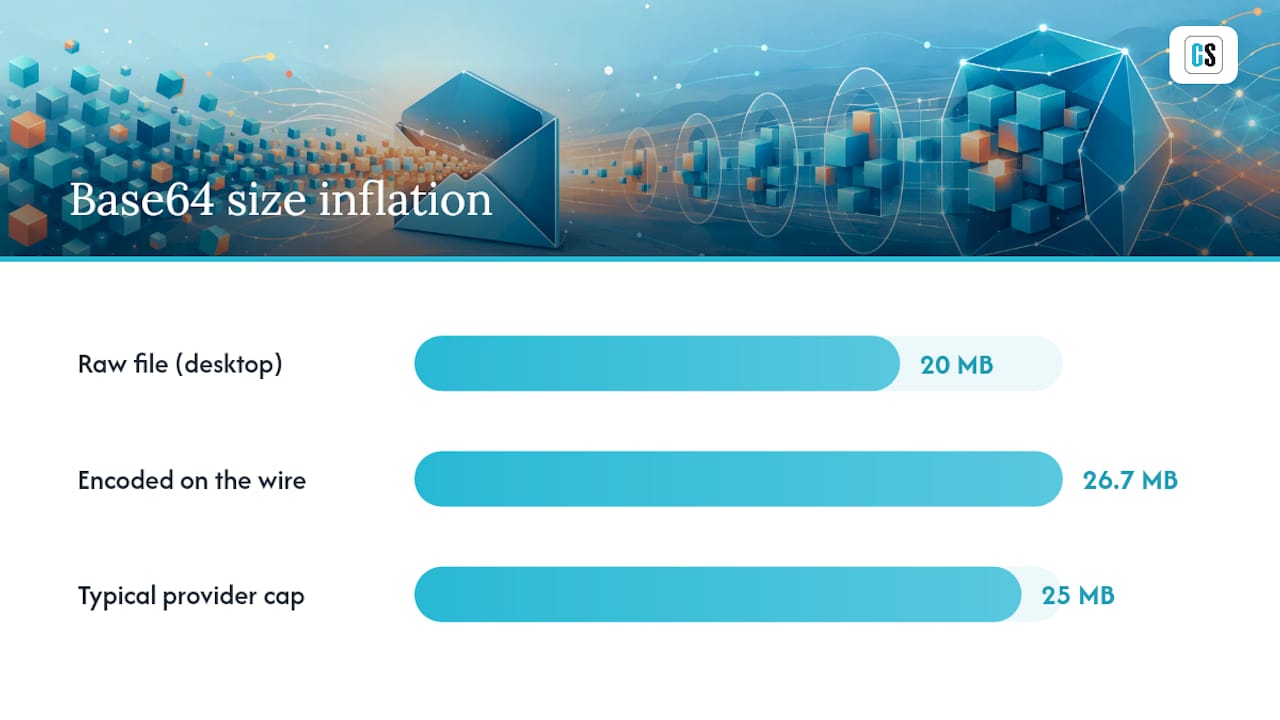
Email was never designed to carry raw binary data cleanly, so attachments get converted into Base64 text before transmission. That encoding scheme expands the original file by a factor of 4/3, or roughly 1.333 times its raw size, and once you add the overhead from MIME headers and boundary markers, the practical inflation factor lands closer to 1.34.
Here's the math that catches people out: a 20 MB PDF report, once encoded, becomes roughly 26.7 MB on the wire. That's already past a 25 MB cap before anyone even glances at the message body or signature. Converting the raw file size before hitting send prevents that surprise entirely.
- Always multiply your raw file size by 1.34 before comparing it to a provider's stated cap.
- A file that reads "24 MB" on your desktop is already too big for most 25 MB caps once encoded.
Why Do Attachments Still Bounce Under the Limit?
A file under the sender's cap can still bounce, because the recipient's inbound server almost always has the final say. The receiving server's limit determines acceptance, regardless of what your own provider allows you to send.
Beyond raw size mismatches, the usual culprits are a full recipient mailbox, a blocked file extension, antivirus or content scanning that chokes on an encrypted archive, a transport rule quietly rejecting the message, or a connector throttle on the receiving mail server. NDR (non-delivery report) codes are your fastest diagnostic tool: a 5.2.3 typically points to a message size violation, while a 5.7.1 usually signals a policy or content filter block.
- Confirm your own outbound limit first, then test with a small dummy file to isolate the problem.
- Read the exact NDR code rather than guessing from the plain-English summary.
- Check mail transport logs on your own server before assuming the fault is external.
- If the file genuinely needs to be that large, switch to a link and skip the guesswork.
- When nothing on your end explains the bounce, contact the recipient's IT admin directly.
Pro Tip: Keep a small "test attachment" (under 100 KB) on hand specifically for isolating delivery problems. If the tiny file also bounces, the issue is almost never size, it's a blocked domain, a full mailbox, or a filter rule.
What's the Best Way to Send Files Larger Than 25MB?
Once a file crosses the practical ceiling, you have four real options, each with different tradeoffs on security, auditability, and how much friction you're putting on the recipient.
| Method | Typical size ceiling | Security control | Audit trail | Recipient effort |
|---|---|---|---|---|
| Cloud storage link (Drive, OneDrive, Dropbox) | Tens of GB | Link permissions, optional expiry | Limited | Low, click to open |
| Mail Drop (iCloud) | Up to 5 GB | Time-limited link | Minimal | Low |
| File-transfer service (WeTransfer and similar) | Commonly up to 2 to 20 GB depending on plan | Password option, expiring link | Minimal | Low |
| Managed file transfer (MFT) | Enterprise-scale | Encryption, access logs, revocation | Strong | Slightly higher, may require login |
Cloud links win on convenience. Gmail and Outlook both auto-detect an oversized attachment and offer to upload it to Drive or OneDrive instead, which is genuinely useful, but remember that swapping a file for a link doesn't change the recipient's inbound cap on the message itself, it just avoids triggering that cap in the first place. It only works if the recipient can actually reach that external storage service, which matters more than people assume in locked-down corporate networks.
To send a cloud link from Outlook:
- Attach the file as usual and let Outlook detect it exceeds the limit.
- Choose "Upload to OneDrive" when prompted, or manually paste a OneDrive share link.
- Set the link's permission level, view-only versus edit access, before sending.
- Add an expiry date if the file contains anything sensitive.
For anything regulated, a password-protected archive shared through a link beats a raw attachment every time, and managed file transfer platforms are worth the setup effort for recurring, sensitive, or high-volume transfers.
Pro Tip: Never send the password for a protected archive in the same email as the link. Use a separate channel, a text message or a phone call, so a compromised inbox doesn't hand over both keys at once.
Can You Increase the Attachment Limit in Outlook or Exchange?
Classic on-premises Exchange Server defaults to 10 MB, a number administrators can raise through mailbox settings, transport rules, and send/receive connector configurations. Exchange Online's limits are also admin-configurable, but raising them tenant-wide has real consequences.
- Adjust individual mailbox limits when only specific users need larger caps.
- Modify transport rules and connector settings for organization-wide changes.
- Test thoroughly after any change; larger caps slow mail flow and strain storage quotas.
- Keep enterprise-wide limits conservative even when the platform technically allows more.
Pro Tip: Raise limits for a specific distribution group or department rather than the entire tenant. It contains the performance impact to the team that actually needs it.
What File Types and Security Filters Block Attachments?
Executable files (.exe), script files (.js, .vbs), and certain archive formats get blocked by default across nearly every enterprise mail system, simply because they're common malware delivery vectors. Password-protected archives create a different problem: they can't be scanned, so many security gateways block them outright rather than let unscanned content through.
- Common blocked extensions: .exe, .bat, .vbs, .js, .scr, and sometimes .zip depending on policy.
- Content scanning and DLP tools inspect attachments in transit, and encrypted files often fail that inspection entirely.
- TLS protects a file in transit but not after it lands in an inbox, so a downloaded attachment sits unprotected on whatever device opens it.
For genuinely sensitive material, send the password through a separate channel from the file itself, and consider file-level encryption that keeps access controls attached to the document even after it's downloaded. Healthcare and financial teams handling regulated data should treat this as a baseline requirement, not an optional extra.
Pro Tip: If your organization handles regulated data, ask whether your encryption approach protects the file after delivery, not just during transmission. Most standard email encryption doesn't.
When Is Emailing a Report the Wrong Approach Entirely?
Attaching a large scheduled report to an email is a fragile habit. It fails silently when a recipient's mailbox is full, leaves no access trail for compliance reviews, and often sits unencrypted in an inbox indefinitely after delivery. Publishing the report to a secure destination and sending a link instead cuts down on failures and gives you an actual audit trail, which matters a great deal more once a report contains financial or customer data.
- Push scheduled reports to a secure cloud destination or shared repository instead of attaching them.
- Use automated delivery tools that notify recipients by link rather than raw file.
- Log every delivery attempt so failures get caught before someone notices a missing report.
Enterprise reporting teams that move from raw attachments to link-based, access-controlled delivery typically see fewer support tickets tied to "I never got the report" and a cleaner record of who actually opened it.
ChristianSteven Software builds this exact approach into its report automation platforms and holds SOC 2 Type II certification, the kind of enterprise-grade trust signal that matters when reports carry sensitive business data.
A Reporting Engineer's Take on Attachment Limits
Every operational rule set I'd trust starts with a hard guardrail: no automated report leaves as a raw attachment past roughly 7 to 10 MB, full stop. Anything larger gets published to a destination and delivered as a link, with logging and automatic retries built in so a bounce gets caught before a stakeholder notices a missing report. A daily PDF that grows past the guardrail should trigger an alert to IT, not a silent failure at 3 a.m.

The mistake most teams make isn't picking the wrong threshold, it's not having one at all. Attachment size becomes a rule only after it's already caused an outage.
Skip the Attachment Problem Entirely With Automated Report Delivery
Every workaround covered here, cloud links, Mail Drop, managed file transfer, exists because email was never built to carry large files reliably. ChristianSteven Software's PBRS platform sidesteps the whole problem for Power BI reporting teams by exporting reports directly to cloud storage, network shares, or secure destinations and notifying recipients with a link, so nobody's waiting on a bounced 20 MB PDF at 6 a.m.

That matters most for recurring, scheduled reports, the daily sales dashboard, the weekly compliance export, the kind of file that grows a little every quarter until it quietly blows past a 25 MB inbox cap. Automating the export path means the delivery method scales with the report instead of breaking every time the file gets bigger. If your team is still manually resending bounced reports or apologizing for "the attachment that never arrived," check out PBRS for automated Power BI report exports and see how the setup compares to what you're doing now.
Where to Verify Current Limits and Encoding Math
- Dartmouth IT knowledge base on Exchange Server defaults, a clear walkthrough of the 10 MB on-premises default.
- Mailbox size and sending limits in iCloud, Apple's own page on Mail Drop and its 5 GB ceiling.
- Email File Size Limit guide by provider, a running comparison of provider caps and the "recipient limit wins" rule.
- PDF email size limits and Base64 math explained, the clearest breakdown of the encoding calculation.
- How to encrypt email attachments and why it matters, a solid explainer on TLS versus file-level encryption gaps.
Sources
- Email File Size Limit: How Many MB Can You Send by Provider
- PDF Email Size Limits (2026): Gmail, Outlook & More
- Email Message and Attachment Size Limit - ser - Dartmouth
- How to Encrypt Email Attachments, and Why You Should | Virtru
FAQ
How do I email attachments larger than 25MB?
Upload the file to a cloud storage service like Google Drive or OneDrive and share a link instead, or use Apple's Mail Drop, which automatically swaps large attachments for an expiring link up to 5 GB.
How many attachments can I send per email?
Most providers don't cap the number of individual files, only the total combined message size, so three small attachments count against the same limit as one large one.
Can you increase the email attachment size limit in Outlook?
Exchange Online and on-premises Exchange both allow admins to raise size limits through mailbox settings and connector configurations, but consumer Outlook.com accounts have a fixed 20 MB cap with no admin override.
How big is too big for email attachments?
Anything over roughly 10 MB raw risks trouble once Base64 encoding inflates it by about a third, and files over 18 to 20 MB raw will exceed most consumer providers' 25 MB caps entirely.
What's the safest way to send large scheduled reports automatically?
Publishing reports to a secure cloud destination and delivering a link avoids bounce failures and unencrypted files sitting in inboxes, which is the approach ChristianSteven Software's PBRS platform automates for Power BI reporting teams.