
You can export any exportable Power BI report to PDF right now using either the Power BI service or Power BI Desktop. No extra software required for a one-off export.
From the Power BI service:
- Open the report, click File (or the Export menu depending on your tenant version).
- Select Export > PDF.
- The service queues the export and the file downloads to your browser's Downloads folder automatically.
From Power BI Desktop:
- Open the report file (.pbix).
- Go to File > Export > Export to PDF.
- The local renderer generates the PDF and saves it to a location you specify.
Three quick caveats before you dive deeper: the Export option disappears if your admin has disabled it at the tenant or report level; some custom visuals and live HTML content won't render in the output; and paginated reports (.rdl) follow a separate export path through Power BI Report Builder.
For a full walkthrough of free and automated export methods, the sections below cover every scenario.
Key Takeaways
The fastest path to a reliable Power BI PDF export is matching the right tool to the right use case: manual for analysts, subscriptions for simple snapshots, and a dedicated scheduler like PBRS for high-volume or personalized delivery.
| Point | Details |
|---|---|
| Two immediate export paths | Use the Power BI service (Export > PDF) or Desktop (File > Export > Export to PDF) for ad-hoc exports. |
| Permissions block export | Pro or Premium license required; tenant and report-level settings can disable the Export option entirely. |
| Static canvas only | PDFs capture the rendered canvas state; interactive visuals, tooltips, and scrollable tables export partially or not at all. |
| Automate with the right tool | Native subscriptions suit simple email snapshots; Power Automate handles moderate routing; PBRS covers high-volume bursting and non-cloud destinations. |
| ChristianSteven Software PBRS | PBRS automates the full refresh-export-deliver sequence with centralized logging, dynamic naming, and enterprise delivery targets. |
Table of Contents
- How does Power BI PDF export work in the service?
- How to export to PDF from Power BI Desktop
- What breaks or gets omitted in a Power BI PDF export?
- Troubleshooting missing export options, blank pages, and lost files
- What are your options for automating scheduled PDF exports?
- Best practices for clean, print-ready PDF output
- Why PDF export scaling is really an operational problem
- PBRS gives you reliable, enterprise-grade PDF scheduling
- Sources
- FAQ
How does Power BI PDF export work in the service?
The web path is the fastest route for most users. Open your report in the Power BI service, then click File > Export > PDF from the top menu bar. A modal dialog appears with one key choice: whether to export only the current page or all pages. Select your preference and click Export.
The service queues the job server-side. For a small report this takes seconds; a report with many pages or heavy visuals can take a minute or two. Once complete, the browser triggers an automatic download, and the file lands in your default Downloads folder. The filename matches the report name.
Filters and slicers applied at the time you click Export are captured in the output. That means if a colleague filtered the report to the Northeast region before sharing the URL with you, the PDF reflects that filtered state. Bookmarks work the same way: the active bookmark state is what gets rendered.
One behavior worth knowing: the service exports each report page as a separate PDF page, sized to the report's canvas dimensions. If your report uses a mobile layout, the export renders the desktop layout, not the mobile one.
Pro Tip: Before exporting, set the page view to "Fit to page" in the View menu. This prevents partial-canvas captures and keeps every visual fully visible in the output.
How to export to PDF from Power BI Desktop
Power BI Desktop exports via File > Export > Export to PDF, and the behavior differs from the service in a few meaningful ways.
- Open your .pbix file in Power BI Desktop.
- Trigger a Refresh (Home > Refresh) so all visuals reflect current data.
- Go to File > Export > Export to PDF.
- A Save dialog appears. Choose your destination folder and filename, then click Save.
- Desktop renders each report page locally and writes the PDF. The file opens automatically in your default PDF viewer when complete.
The local renderer is the key difference. Desktop uses its own rendering engine rather than the Power BI service's hosted engine, so fonts, image resolution, and visual spacing can look slightly different from a service export of the same report. Large canvases (wider than standard A4 or Letter dimensions) sometimes get clipped or scaled down in Desktop exports, so check the output on the first page before distributing.
Desktop also gives you direct control over page size and orientation. Set these under View > Page View and in the Format pane under Page information. Portrait works well for standard business reports; Landscape suits wide tables and matrix visuals.
Pro Tip: Always refresh the report immediately before exporting from Desktop. Stale visuals that haven't fully loaded will appear blank or show a loading spinner in the PDF, and there's no way to fix that after the fact without re-exporting.
What breaks or gets omitted in a Power BI PDF export?
Not everything in a Power BI report survives the export to PDF, and knowing the gaps upfront saves a lot of frustration.
Custom visuals that rely on interactivity (drill-through animations, embedded web content, live maps with tile layers) render as blank boxes or static images with no data. Tooltip pages don't export at all. R and Python visuals export as static images, which is usually fine, but complex chart types sometimes lose label precision in the conversion.
The "only visible area" problem trips up a lot of users. If a visual is partially off-canvas or hidden behind another element, the PDF captures exactly what the canvas shows at that moment. Scrollable matrix visuals are a common culprit: only the visible rows export, not the full dataset.
Page count and canvas scale also matter. The Power BI service has a limit on the number of pages it will export in a single PDF job. Very large reports may need to be split or exported in sections. On the Desktop side, canvases set to custom sizes larger than standard paper dimensions often get scaled in ways that make text small or visuals cramped.
License and workspace type create their own restrictions. Export to PDF is available to Power BI Pro users and above. Reports in workspaces assigned to a Premium capacity have broader export options, including support for paginated reports. Free-tier users cannot export to PDF from the service. Power BI Report Builder (paginated reports) follows a completely separate export path and gives you pixel-perfect PDF output with full pagination control, but it requires its own authoring workflow.
Troubleshooting missing export options, blank pages, and lost files
Most export failures fall into one of four categories: permissions, licensing, browser behavior, or report configuration.
Checklist when the Export button is missing or grayed out:
- Confirm your Power BI license is Pro or Premium (Free users cannot export).
- Check with your Power BI admin whether tenant-level export has been disabled under Admin portal > Tenant settings > Export and sharing settings.
- Verify the report owner hasn't disabled export at the report level under File > Settings > Report settings.
- If you're viewing an embedded report (in Teams or a third-party app), export may be restricted by the embedding configuration.
Fixes for partial pages and cropped visuals:
- Set the report page view to "Fit to page" before exporting.
- Resize visuals that extend beyond the canvas boundary.
- For scrollable tables, consider switching to a paginated report if full-data export is required.
Fixes for blank pages or missing visuals:
- Refresh the report data before exporting (both in the service and Desktop).
- Clear your browser cache and try again in the service; a stale session sometimes causes rendering failures.
- Republish the report from Desktop if a recent edit introduced a broken visual.
- Test the same export in Power BI Desktop to isolate whether the issue is service-side or in the report itself.
Finding your downloaded file: The browser's default Downloads folder is where service exports land unless your browser is configured otherwise. In Chrome, check the download bar at the bottom of the screen or go to chrome://downloads. In Edge, use Ctrl+J. Desktop exports go wherever you pointed the Save dialog.
What are your options for automating scheduled PDF exports?
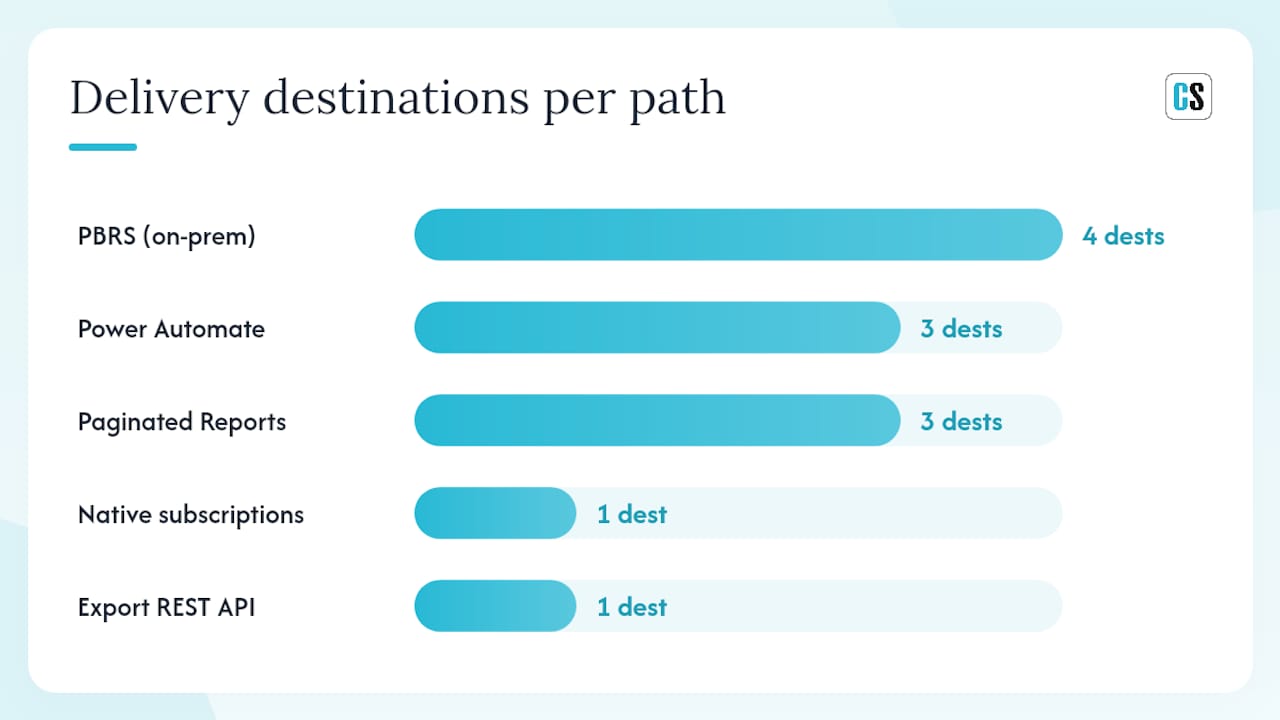
Manual exports work for one-off needs. Once you need PDFs on a schedule, delivered to specific people or destinations, you need one of five approaches. Each has a different ceiling.
Native Power BI subscriptions
The built-in subscription feature (in the Power BI service, click Subscribe to report) sends a PDF or image snapshot by email on a schedule you set. Setup takes two minutes. The limits are real though: email is the only delivery destination, you can't dynamically filter per recipient, and you can't chain a data refresh before the export. Native subscriptions are fine for simple snapshots but hit a wall fast when personalization or non-email delivery is required.
Power Automate
Power Automate's "Export to file for Power BI Reports" action lets you build a flow that sequences refresh, export, and delivery. You can route the PDF to SharePoint, OneDrive, or an email attachment. It's the practical next step for Microsoft-centric teams and handles moderate complexity well. At scale, though, flows can become brittle: timeouts on large reports, limited retry logic, and no centralized logging make it harder to manage across dozens of schedules. For flexible scheduling sequences, Power Automate covers most mid-tier needs.
Power BI Paginated Reports (Report Builder)
Paginated reports give you pixel-perfect PDF output with full control over page breaks, headers, footers, and multi-page tables. They're the right tool when the PDF must match a specific print layout or include complete dataset rows. The tradeoff is authoring complexity: Report Builder is a separate application, and paginated reports require a Premium capacity or Premium Per User license to publish to the Power BI service.
Power BI Export REST API
The Export API lets developers trigger exports programmatically, apply filters and bookmarks per call, and integrate PDF generation into custom applications or pipelines. It supports both standard and paginated reports. The API is powerful but requires development effort to build retry logic, handle async job polling, and manage delivery routing.
On-premises schedulers (PBRS)
Dedicated schedulers like PBRS handle high-volume workloads, advanced routing (FTP/SFTP, network file shares, email, SharePoint), bursting a single master report into many personalized PDFs, and centralized logging with retries. This is where enterprise teams land when Power Automate's complexity becomes unmanageable or when delivery targets are outside the Microsoft cloud.
| Automation path | License needed | Delivery destinations | Personalization / bursting | Complexity |
|---|---|---|---|---|
| Native subscriptions | Pro or Premium | Email only | Basic | Low |
| Power Automate | Pro + Power Automate license | Email, SharePoint, OneDrive | Moderate | Medium |
| Paginated Reports | Premium or PPU | Service, API, email | High (per-report) | High |
| Export REST API | Pro or Premium | Custom (developer-built) | High | High |
| PBRS (on-prem scheduler) | PBRS license | Email, file share, FTP, SharePoint | High (bursting) | Low-Medium |
Pro Tip: Sequence your automation as refresh → export → deliver, in that order. Exporting before the data refresh completes is the single most common cause of stale PDFs in scheduled distributions. PBRS and Power Automate both support this sequence natively.
Best practices for clean, print-ready PDF output
The quality of a Power BI PDF export is mostly determined before you click Export, not after.
Page sizing and orientation:
- Set your report canvas to match the intended paper size. For US Letter printing, use 8.5 × 11 inches in the Format pane under Page size > Custom. A4 is 8.27 × 11.69 inches.
- Choose Portrait for text-heavy reports and Landscape for wide tables or multi-column dashboards.
Visual layout:
- Leave at least 8–10 pixels of margin between visuals and the canvas edge. Visuals that touch the edge often get clipped in the PDF.
- Avoid overlapping visuals entirely. The PDF renderer captures the canvas as-is; overlapping elements don't resolve cleanly.
- Keep font sizes at 10pt or above for body text. Smaller fonts become unreadable when printed.
Image and chart quality:
- Use native Power BI chart types (bar, line, scatter) wherever possible. They render as vectors in the export and stay sharp at any print size.
- Avoid heavy background images. They increase file size and can wash out text when printed on standard office printers.
- PNG images embedded in the report export at their source resolution. Use high-resolution source images if the PDF will be printed.
Pro Tip: *Print a test page on your target paper size before distributing a report template.
For a deeper look at enterprise PDF scheduling and delivery patterns, the authoring decisions above compound quickly when you're generating hundreds of PDFs per run.
Why PDF export scaling is really an operational problem
Most teams treat Power BI PDF exports as a technical task. Get the menu path right, fix the broken visual, done. That framing works until the request volume grows.
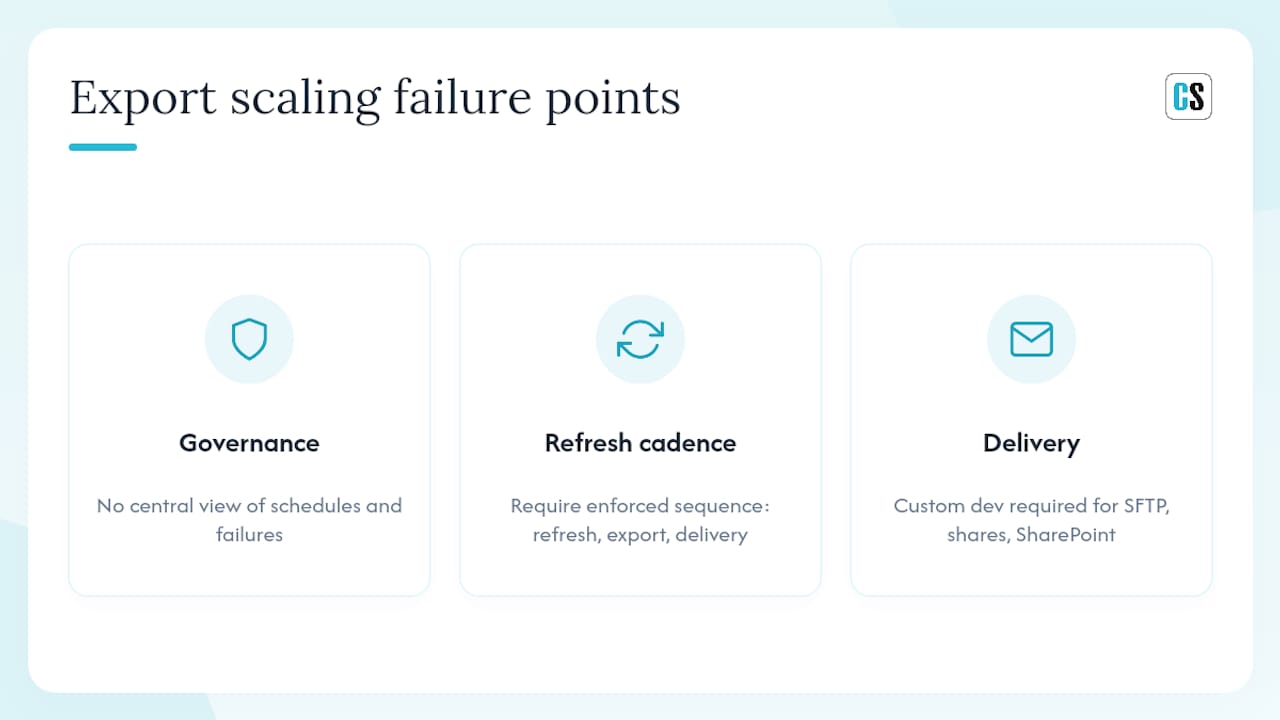
The real friction shows up when a finance team needs 40 region-specific board snapshots every Monday morning, or when a sales ops team needs personalized pipeline PDFs delivered to 200 account managers before a quarterly review. At that point, the question isn't "how do I export to PDF" — it's "how do I govern the refresh schedule, guarantee delivery, and know when something failed?"
Governance is usually the first thing to break. A Power Automate flow that works fine for one report becomes a maintenance burden when someone adds a new report, changes a workspace, or the gateway goes offline. There's no central view of what's scheduled, what ran, and what failed. Teams discover failures when a stakeholder emails to ask where their report is.
Refresh cadence is the second gap. Exporting stale data is worse than not exporting at all, because recipients make decisions on it. The sequence has to be enforced: refresh completes, then export triggers, then delivery fires. Native subscriptions don't enforce this. Power Automate can, but requires careful flow design and error handling.
Delivery destination is the third constraint. Email works for internal teams. The moment you need to push PDFs to a network share, an SFTP server, a client portal, or a SharePoint library with a specific folder structure and dynamic filename, the native tools require significant custom development. That's the gap where purpose-built schedulers earn their keep.
PBRS gives you reliable, enterprise-grade PDF scheduling
When your Power BI PDF export needs outgrow what native subscriptions and Power Automate can handle, PBRS from ChristianSteven Software is built for exactly that gap.

PBRS automates the full sequence: data refresh, PDF export, dynamic file naming, and delivery to email, SharePoint, network file shares, FTP/SFTP, or any combination via an automated publishing platform. It supports bursting, where a single master report generates hundreds of personalized PDFs filtered per recipient or region, with each file named and routed automatically. Centralized scheduling, retry logic, and delivery logs mean your team knows what ran, what failed, and why, without digging through flow run histories.
With SOC 2 Type II certification and over two decades of enterprise BI automation experience, ChristianSteven Software is the partner organizations trust when reporting reliability is non-negotiable. Start a free trial or book a demo to see PBRS in action against your actual reporting workload.
Sources
FAQ
Where does Power BI save exported PDFs?
When you export from the Power BI service, the file downloads automatically to your browser's default Downloads folder. Desktop exports go to whatever folder you selected in the Save dialog.
How do I convert a Power BI report to PDF?
Open the report in the Power BI service and select File > Export > PDF, or in Power BI Desktop go to File > Export > Export to PDF. Both paths generate a static PDF of the report's current rendered state.
Can Power BI export PDFs automatically on a schedule?
Yes. Native subscriptions send scheduled email snapshots, Power Automate can sequence refresh and export into a flow, and dedicated schedulers like PBRS handle high-volume, personalized PDF delivery to multiple destinations automatically.
Why is my Export to PDF option missing?
The Export button is hidden or disabled when your license is Free tier, when a Power BI admin has turned off export at the tenant level, or when the report owner has disabled export in the report settings. Check all three before troubleshooting elsewhere.
Can Power BI pull data directly from a PDF file?
Yes, Power BI Desktop includes a PDF connector under Get Data > PDF that extracts tables from PDF files as data sources. This is separate from exporting reports to PDF and is used for ingesting PDF-based data into your model.
Recommended
- Microsoft Power BI Export To PDF: Complete Guide For Business Reporting
- How To Export Microsoft Power BI Reports to PDF for Free (And Automate Enterprise Delivery)
- 4 Quick and Easy Ways to Schedule and Export Power BI Reports
- Data Visualization With Microsoft Power BI PDF Reports: Automated Scheduling and Delivery for Enterprises