
TL;DR:
- Power BI offers four report scheduling options including native subscriptions, Power Automate flows, and enterprise schedulers like PBRS. For small teams, native email subscriptions are quick but limited in interactivity and destinations, while PBRS provides comprehensive, scalable workflow automation with auditing and multi-destination routing. Proper timing of refreshes and license considerations are crucial for reliable, governance-compliant report delivery.
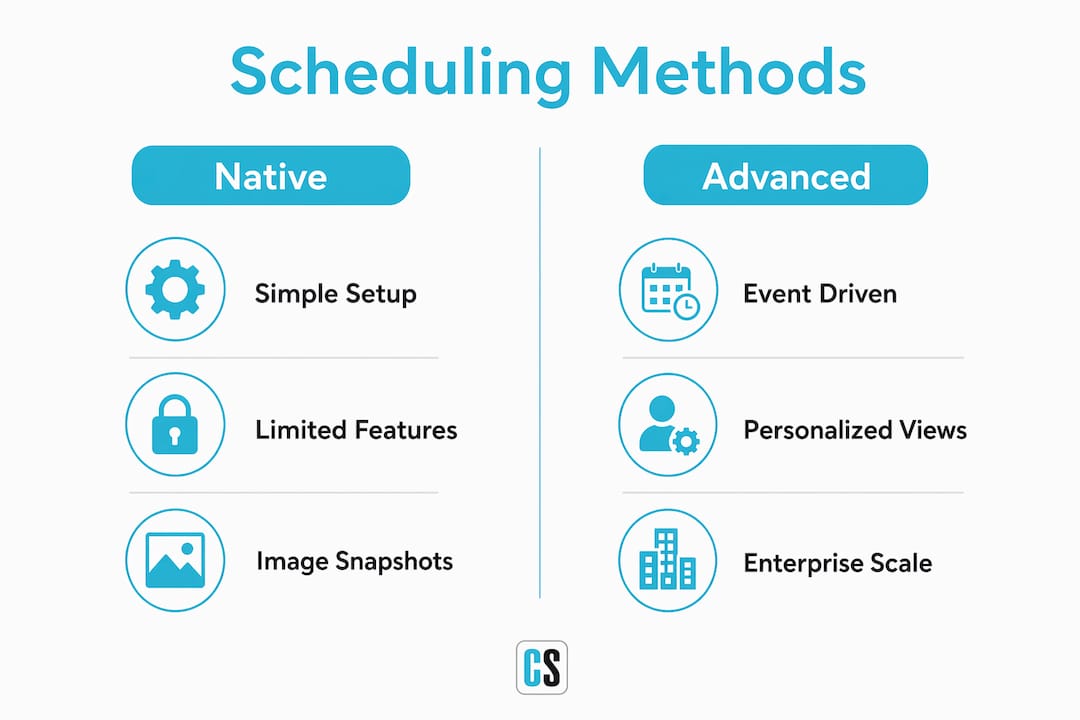
You can schedule Power BI reports four ways: native service subscriptions, scheduled dataset refresh paired with subscriptions, Power Automate flows using the "Export to File" action, and dedicated enterprise schedulers like PBRS. For a small team that just needs a weekly status snapshot, native subscriptions get you there in minutes. For event-driven exports, multi-destination routing, or conditional delivery, Power Automate is the right tool. When you need pixel-perfect PDF or Excel attachments, paginated report subscriptions handle that cleanly. And when your organization demands data-driven bursting, audit trails, and guaranteed delivery SLAs, PBRS is built for exactly that.
Quick trade-off summary before you choose:
- Interactivity: Native subscriptions send static image snapshots. Recipients who need to filter or drill down must open Power BI Service directly.
- Scalability: Native options have a limited number of subscriptions per report. Enterprise schedulers remove that ceiling.
- Governance and audit: Power BI Service logs are basic. Dedicated schedulers provide per-delivery logs, retry records, and credential management.
- Destination flexibility: Native subscriptions go to email only. Power Automate adds Teams, SharePoint, and OneDrive. Enterprise schedulers extend to SFTP, databases, and more.
Pro Tip: Before you configure anything, confirm your workspace type. Shared workspaces behave differently from Premium workspaces, and your license tier determines which scheduling features are even available to you.
Table of Contents
- How do you set up email subscriptions in Power BI?
- How does dataset refresh scheduling affect report delivery?
- How do you use Power Automate to export and distribute Power BI reports?
- When should you use paginated reports for scheduled delivery?
- What does enterprise-grade Power BI scheduling actually look like?
- What are the most common scheduling failures and how do you fix them?
- How do you choose the right scheduling method for your organization?
- Key Takeaways
- The part most teams get wrong about report scheduling
- PBRS handles what native Power BI scheduling cannot
- Useful sources for further reading
- FAQ
How do you set up email subscriptions in Power BI?
Power BI email subscriptions deliver a static image snapshot of your report page, plus an optional link to the live report. Recipients who want to interact with the data need to click through to Power BI Service. That distinction matters: if your audience expects a filterable view in their inbox, subscriptions will disappoint them.
Here is how to create one:
- Open the report in Power BI Service and navigate to the page you want to send.
- Select Subscribe from the top menu bar.
- Add recipients. Use mail-enabled security groups rather than individual addresses wherever possible — it simplifies management as your distribution list grows.
- Choose the specific page, bookmark, or saved view you want to capture. Bookmarks are useful when you need to lock in a particular filter state.
- Set frequency (hourly, daily, weekly, or after data refresh) and specify the time and time zone.
- Toggle Include link if recipients should be able to jump to the live report.
- Add a custom subject line and message, then save.
A few things to keep in mind:
- License requirements: Report owners need a Power BI Pro or Premium Per User (PPU) license to create subscriptions. In Premium capacity workspaces, free-license users can receive subscriptions but cannot create them.
- Recipient limits: You can add many recipients per subscription and create multiple subscriptions per report or dashboard.
- Editing and transfers: Subscription owners can edit or delete their own subscriptions. Workspace admins can transfer ownership when someone leaves the team.
- Disabling subscriptions: Admins can pause or delete subscriptions from the workspace settings panel.
Pro Tip: Schedule your subscription to fire 15–30 minutes after your dataset refresh is expected to complete. A subscription that runs before the refresh finishes will send yesterday's numbers with today's timestamp.

How does dataset refresh scheduling affect report delivery?
Refresh timing is the single most overlooked variable in Power BI report scheduling. If your delivery fires before the refresh completes, every recipient gets stale data — and they may not realize it. The correct pattern is to trigger exports after a confirmed refresh success, or to build in a buffer window long enough to cover typical refresh duration.
Gateway setup essentials:
- Use the on-premises data gateway (standard mode) for shared, multi-user environments. Personal mode gateways are limited to a single user and cannot support scheduled refresh for shared workspaces.
- Store credentials in the gateway's credential manager, not hardcoded in queries. Expired credentials are one of the top causes of refresh failures.
- Keep the gateway machine online and updated. A gateway that goes offline silently blocks all scheduled refreshes downstream.
Refresh cadence best practices:
- Enable incremental refresh for large fact tables. It refreshes only new or changed partitions, cutting refresh time significantly for high-volume datasets.
- Add a 15–30 minute buffer between expected refresh completion and your first scheduled delivery. This accounts for capacity queuing in shared environments.
- Set up refresh failure alerts in Power BI Service (Settings > Datasets > Scheduled Refresh > Send refresh failure notifications). You want to know before your 8:00 AM distribution fires on bad data.
Refresh history is your first diagnostic tool. Open the dataset in Power BI Service, select the ellipsis menu, and choose "Refresh history" to see start time, duration, and error messages for every past run. Cross-reference that against your subscription send times to confirm alignment.
Common refresh errors and fixes:
- Credential expired: Re-enter credentials in the dataset settings under "Data source credentials."
- Gateway offline: Check the gateway machine's status in the Power Platform admin center.
- Timeout: Reduce query complexity, enable incremental refresh, or upgrade to Premium capacity for longer timeout allowances.
- Capacity throttling: Reschedule refreshes to off-peak hours or distribute them across the day.
How do you use Power Automate to export and distribute Power BI reports?
Power Automate is the right choice when you need more than email delivery — routing to Teams channels, SharePoint document libraries, or triggering exports based on events rather than a fixed clock. The Export to File for Power BI Reports action handles the heavy lifting.
Here is a practical example flow:
- Trigger: Use a Recurrence trigger for time-based exports, or the "When a dataset refresh completes" trigger for event-driven delivery.
- Export action: Add "Export To File for Power BI Reports," select your workspace and report, choose the format (PDF, PPTX, or PNG), and configure any report filter parameters.
- Store the file: Route the exported file to SharePoint or OneDrive using the "Create file" action. This gives you a versioned archive automatically.
- Distribute: Send via Outlook ("Send an email with options" or "Send an email") with the file as an attachment, or post to a Teams channel using the "Post a message" action.
- Conditional branching (optional): Add a condition step to check export status. If the export fails, send an alert to the report owner instead of a blank email to the full distribution list.
Connector and permission notes:
- Flows run under the credentials of the flow owner by default. If the flow owner's license expires or their account is disabled, every scheduled export breaks.
- Service principal authentication is available for more resilient enterprise flows — it decouples the flow from any individual user account.
- Power Automate Premium connectors (including the Power BI connector) require a Power Automate Premium license or a Power Apps per-app plan.
Limitations to know before you build:
- Export latency can run several minutes for large reports. Build timeout handling into your flow.
- File size limits apply at the email attachment level (Outlook connector caps attachments at 25 MB by default).
- The exported file reflects the report state at export time, not the live dashboard state. Filters applied in the flow parameters control what data appears.
- Flows have concurrency and throttling limits. High-frequency exports across many reports can hit API rate limits, causing queued or failed runs.
When should you use paginated reports for scheduled delivery?
Paginated reports are built for outputs that need to look exactly right every time: multi-page financial statements, invoices, regulatory filings, or any export where row count varies and the layout must hold. Standard Power BI report subscriptions send a screenshot. Paginated report subscriptions send an actual file attachment.
How to schedule paginated report subscriptions:
- Open the paginated report in Power BI Service (it must be published to a Premium, PPU, or Fabric workspace).
- Select Subscribe and configure the schedule, recipients, and parameters.
- Choose your attachment format: PDF, Excel, Word, CSV, or XML.
- Recipients receive the file directly in their inbox — no link to click, no login required to read the content.
Format comparison:
| Format | Best for | Key limitation |
|---|---|---|
| Regulatory filings, print-ready reports, exec summaries | Not editable; large files for long reports | |
| Excel | Finance teams who need to pivot or model further | Layout fidelity varies with complex formatting |
| CSV | Data feeds, downstream system imports | No formatting; flat structure only |
| Word | Narrative reports with embedded tables | Less common; limited visual fidelity |
Deployment notes:
- Paginated reports require Power BI Report Server (on-premises) or a Premium/PPU/Fabric workspace in Power BI Service.
- Subscriptions for paginated reports support parameter-driven delivery, meaning each recipient can receive a version filtered to their data — a basic form of bursting.
- Unlike standard report subscriptions, paginated subscriptions can deliver attachments without requiring the recipient to have a Power BI license.
What does enterprise-grade Power BI scheduling actually look like?
Native Power BI scheduling covers a lot of ground, but it hits a ceiling fast in larger organizations. The gaps show up in predictable places: no centralized view of all scheduled jobs, no per-delivery audit log, no way to drive recipient lists from a database table, and no retry logic when a delivery fails at 3:00 AM. That is where a dedicated scheduler like PBRS by ChristianSteven Software fills in.
What enterprise schedulers add:
- Centralized schedule console: Manage every report, every destination, and every schedule from one interface instead of hunting across workspaces.
- Data-driven bursting: Drive recipient lists, filter parameters, and delivery destinations directly from a database table. One schedule can produce hundreds of personalized report versions automatically.
- Shared credential management: Store and rotate credentials centrally rather than relying on individual user accounts that can expire or be disabled.
- Robust logging and audit trails: Every delivery attempt — success or failure — is logged with timestamps, recipient details, and error codes. This is the record compliance teams ask for.
- Retry rules and SLA controls: Define retry intervals and escalation paths so a transient network error does not silently drop a critical delivery.
- Multi-format, multi-destination exports: Route the same report to email, SharePoint, Teams, SFTP, a database, or a network file share in a single scheduled job.
ChristianSteven Software has focused on BI report automation for more than two decades, and PBRS carries SOC 2 Type II certification. For organizations in regulated industries or those managing hundreds of scheduled reports, that certification matters when procurement and security teams ask questions.
The case for moving to a dedicated scheduler: "Organizations often need dedicated schedulers when they require data-driven recipient lists, multi-step workflows, audit logs, retry rules, and guaranteed delivery windows — capabilities that native options do not fully provide." When your report distribution starts to feel like a manual process you are constantly babysitting, that is the signal to move.
When does PBRS make sense? If you are managing more than a handful of scheduled reports, need to deliver personalized views to different business units, or operate in an environment where a missed delivery has compliance consequences, the PBRS Power BI scheduler is worth evaluating.

What are the most common scheduling failures and how do you fix them?
Most Power BI report scheduling failures trace back to three root causes: the refresh did not finish before delivery fired, credentials expired somewhere in the chain, or a permission mismatch blocked the export. Check those three before anything else.
Troubleshooting checklist:
- Verify the dataset refresh completed successfully (check refresh history in Power BI Service).
- Confirm the subscription or flow is pointing to the correct report page, bookmark, or saved view.
- Check whether Row-Level Security (RLS) is filtering out data for the subscription owner's account — the snapshot reflects what the subscription creator can see, not what the recipient can see.
- Test the export manually (run the flow once, or trigger a subscription on-demand) before relying on the schedule.
- Inspect Power BI Service activity logs and, for Power Automate flows, the run history panel.
- For PBRS, review the scheduler's delivery log for error codes and retry records.
Limits and constraints by license tier:
| Feature | Pro | Premium Per User (PPU) | Premium Capacity |
|---|---|---|---|
| Subscriptions per report | Up to 24 | Up to 24 | Up to 24 |
| Paginated report subscriptions | Not supported | Supported | Supported |
| Attachment delivery (paginated) | Not supported | Supported | Supported |
| Dataset refresh frequency | 8x/day | Hourly | Hourly |
| Recipient license requirement | Pro required | Pro/PPU required | Free users can receive |
When to escalate to an enterprise scheduler:
- You need to burst a single report to hundreds of recipients with personalized filters.
- Compliance requires a per-delivery audit log that Power BI Service does not produce.
- Delivery SLAs matter and you need retry logic with escalation paths.
- You are routing reports to destinations beyond email (SFTP, databases, Teams, SharePoint simultaneously).
How do you choose the right scheduling method for your organization?
The decision comes down to four variables: how many recipients, how much interactivity they need, where the report needs to land, and how much governance your organization requires.
Decision checklist:
- Audience count under 50, email only, status updates: Native Power BI subscriptions. Fast to set up, no additional tooling.
- Event-driven delivery or multi-destination routing: Power Automate. Use the dataset refresh trigger to fire exports only after confirmed refresh completion.
- Pixel-perfect attachments, large tables, or no-login delivery: Paginated report subscriptions. Requires Premium, PPU, or Fabric workspace.
- Hundreds of recipients, personalized views, audit requirements, or complex retry logic: PBRS or a comparable enterprise scheduling approach.
Comparison of scheduling methods:
| Dimension | Native subscriptions | Power Automate | Paginated reports | Enterprise scheduler (PBRS) |
|---|---|---|---|---|
| Scalability | Low (up to 24 per report) | Medium | Medium | High (no practical cap) |
| Governance/audit | Minimal | Flow run history | Basic | Full per-delivery logs |
| Destination flexibility | Email only | Email, Teams, SharePoint, OneDrive | Email (attachment) | Email, SFTP, DB, Teams, SharePoint, file share |
| Setup complexity | Low | Medium | Medium | Higher (initial config) |
| Attachment support | No (snapshot image) | Yes (exported file) | Yes (PDF, Excel, CSV) | Yes (multi-format) |
| Data-driven bursting | No | Limited | Basic (parameters) | Yes (database-driven) |
| License requirement | Pro/PPU | Power Automate Premium | Premium/PPU/Fabric | PBRS license |
The table above uses generic method labels rather than vendor names because the decision is about capability fit, not brand preference. For most teams under 50 recipients with straightforward needs, native subscriptions and Power Automate cover the ground. Once governance, scale, or destination complexity enters the picture, the native tools start to show their limits.
Key Takeaways
The most effective Power BI report scheduling strategy aligns delivery timing with dataset refresh, matches the method to the audience size and governance requirement, and escalates to enterprise tooling when native options hit their ceiling.
| Point | Details |
|---|---|
| Match method to need | Native subscriptions for small teams; Power Automate for event-driven or multi-destination; paginated reports for attachments; PBRS for enterprise scale. |
| Align delivery with refresh | Schedule deliveries 15–30 minutes after expected refresh completion to prevent stale snapshots reaching recipients. |
| Use groups and RLS carefully | Add mail-enabled security groups as recipients and verify RLS settings reflect what each recipient should see. |
| Know your license limits | Pro supports up to 24 subscriptions per report; paginated report subscriptions require Premium, PPU, or Fabric. |
| ChristianSteven Software PBRS | When bursting, audit logs, or multi-destination delivery are required, PBRS provides the centralized scheduling and SOC 2 Type II-certified governance native tools lack. |
Your first three steps:
- Confirm your workspace type and license tier before configuring any schedule.
- Check dataset refresh history and set a delivery buffer of at least 15 minutes after expected completion.
- Run one manual test of your subscription or flow end-to-end before enabling the recurring schedule.
The part most teams get wrong about report scheduling
Most organizations treat Power BI report scheduling as a one-time configuration task. Set the subscription, forget it, and assume the right numbers are landing in the right inboxes. That assumption is where things quietly break.
What ChristianSteven Software sees repeatedly: delivery schedules that were never synchronized with refresh windows, distribution lists that grew organically and now include people who left the company, and no one who can answer the question "did this report actually get delivered last Tuesday?" when an executive asks. The audit trail simply does not exist in native tooling.
The fix is not complicated, but it requires intention. Centralize your schedule inventory so someone owns the full picture. Drive recipient lists from a source of truth — an HR system, an Active Directory group, a database table — rather than maintaining them manually. Log every delivery. And test your recovery path: what happens when a refresh fails at 2:00 AM and the 6:00 AM distribution fires anyway? If the answer is "recipients get stale data and nobody knows," that is a process gap, not a technology gap.
The teams that get this right treat report delivery the same way they treat any other operational process: with defined owners, documented schedules, and alerts that fire before the problem reaches a stakeholder.
PBRS handles what native Power BI scheduling cannot
When your organization has outgrown native subscriptions and Power Automate flows, PBRS by ChristianSteven Software picks up where they leave off. It delivers automated Power BI report exports with the governance and reliability that enterprise environments require.

Key capabilities that matter to buyers:
- Data-driven bursting: Generate hundreds of personalized report versions from a single schedule, driven by a database table.
- Multi-destination delivery: Route reports to email, SharePoint, Teams, SFTP, databases, and network file shares simultaneously.
- Centralized schedule console: One interface for every report, every destination, every schedule across your Power BI environment.
- Full audit logs: Per-delivery records with timestamps, recipient details, and error codes — ready for compliance reviews.
- Retry and SLA controls: Define retry intervals and escalation paths so transient failures do not become missed deliveries.
ChristianSteven Software has carried SOC 2 Type II certification and has been building BI automation software for more than two decades. Start a free trial or request a demo directly at the PBRS product page to see how it fits your environment.
Useful sources for further reading
- Microsoft Learn: Email subscriptions for reports and dashboards — the authoritative reference for subscription setup, license requirements, and supported frequencies. Check here first for UI screenshots and any license-tier updates.
- ChristianSteven: How to schedule Power BI reports for enterprise delivery — step-by-step enterprise scheduling guide covering refresh alignment, governance, and PBRS implementation.
- ChristianSteven: Power BI report scheduler product overview — feature reference for PBRS, including bursting, multi-destination delivery, and audit capabilities.
- ChristianSteven: Power Automate tutorial for flexible Power BI exports — practical flow examples for the Export to File action and event-driven triggers.
- BiSolusi: Power BI email subscription setup guide — clear walkthrough of subscription mechanics, frequency options, and recipient limits; useful for teams setting up native subscriptions for the first time.
For UI screenshots and current license pricing, always cross-reference with Microsoft's official Power BI pricing page since tier boundaries and feature availability change with product updates.
FAQ
Can Power BI schedule and send reports automatically?
Yes. Power BI Service supports email subscriptions that send report snapshots on a schedule (hourly, daily, weekly, or after data refresh), and Power Automate can export reports to file and route them to email, Teams, or SharePoint based on time or event triggers.
What is a significant limitation of Power BI's native scheduling?
Native subscriptions send static image snapshots, not interactive reports, and are capped at 24 subscriptions per report. Paginated report attachments and data-driven bursting require Premium or PPU licensing, and there is no built-in per-delivery audit log.
When should you use Power Automate instead of native subscriptions?
Use Power Automate when you need event-driven exports (triggered after a dataset refresh completes), file attachments rather than image snapshots, or delivery to destinations beyond email such as Teams channels or SharePoint libraries.
Is Power BI still a relevant platform for enterprise reporting in 2026?
Power BI remains one of the most widely adopted business intelligence platforms, with Microsoft continuing to invest in Fabric integration, paginated reports, and expanded API capabilities. For organizations already in the Microsoft ecosystem, it is a practical foundation for scheduled and automated reporting.
What licenses do you need for Power BI report scheduling?
Creating subscriptions requires a Pro or PPU license. Receiving subscriptions in a Premium capacity workspace does not require a recipient license. Paginated report subscriptions with file attachments require a Premium, PPU, or Fabric workspace. Enterprise schedulers like PBRS operate under their own licensing, separate from Power BI Service tiers.