
A data-driven subscription in SQL Server Reporting Services (SSRS) automates report delivery by running a query at execution time to supply recipients, delivery settings, and parameter values dynamically. Three things must be in place before you can build one: the right SSRS edition and server mode, a subscriber dataset whose columns map to subscription fields, and a correctly configured delivery extension (typically SMTP email or a file share).
Here is what that means in practice:
- Edition requirement. Data-driven subscriptions require SQL Server Enterprise or Business Intelligence edition. Standard Edition does not support creating them natively.
- Subscriber query contract. Your dataset query must return at least one column for the delivery address (e.g.,
ToEmailAddress) and any report parameter values you want to vary per recipient. - Field mapping. Every subscription field (To, CC, Subject, Format, FileName, parameter values) must be mapped to a dataset column or a static value before the subscription can save.
- SMTP access. The Report Server service account needs authenticated access to your SMTP relay.
- Subscriber data hygiene. Stale or incorrect rows in your subscriber table cause delivery failures and unnecessary rendering load, so treat that table as a first-class data asset.
ChristianSteven Software has spent more than two decades helping organizations automate BI report delivery across SSRS, Power BI, Tableau, and Crystal Reports environments. The operational patterns in this guide reflect that field experience alongside the official Microsoft documentation on data-driven subscriptions.
Table of Contents
- What do you need before creating data-driven subscriptions?
- How does SSRS evaluate and deliver a data-driven subscription at runtime?
- How do you build a data-driven subscription step by step?
- How do you send email only when the query returns rows?
- How do you manage and monitor subscriptions day to day?
- What are the most common data-driven subscription errors and how do you fix them?
- How do you keep data-driven subscriptions performant at scale?
- How do you secure subscription data and meet governance requirements?
- What ChristianSteven Software has learned from enterprise SSRS deployments
- Key Takeaways
- The gap between what data-driven subscriptions promise and what actually breaks them
- When native SSRS subscriptions are not enough
- Useful sources
- FAQ
What do you need before creating data-driven subscriptions?
Before you write a single line of SQL for your subscriber query, confirm that your environment actually supports the feature. Skipping this check is the single most common reason developers spend hours debugging a subscription that the server was never going to create.
Edition and server mode
Data-driven subscriptions are available only in Native Mode SSRS. SharePoint Integrated Mode has its own subscription model and does not expose the data-driven option in the same way. On the edition side, you need SQL Server Enterprise or Business Intelligence edition. Straight Path Solutions documented a migration case where existing data-driven subscriptions were present in the ReportServer database after a migration, but the SSRS portal no longer offered the data-driven option because the target server was running Standard Edition. The subscriptions existed in the database; the server simply refused to surface them.
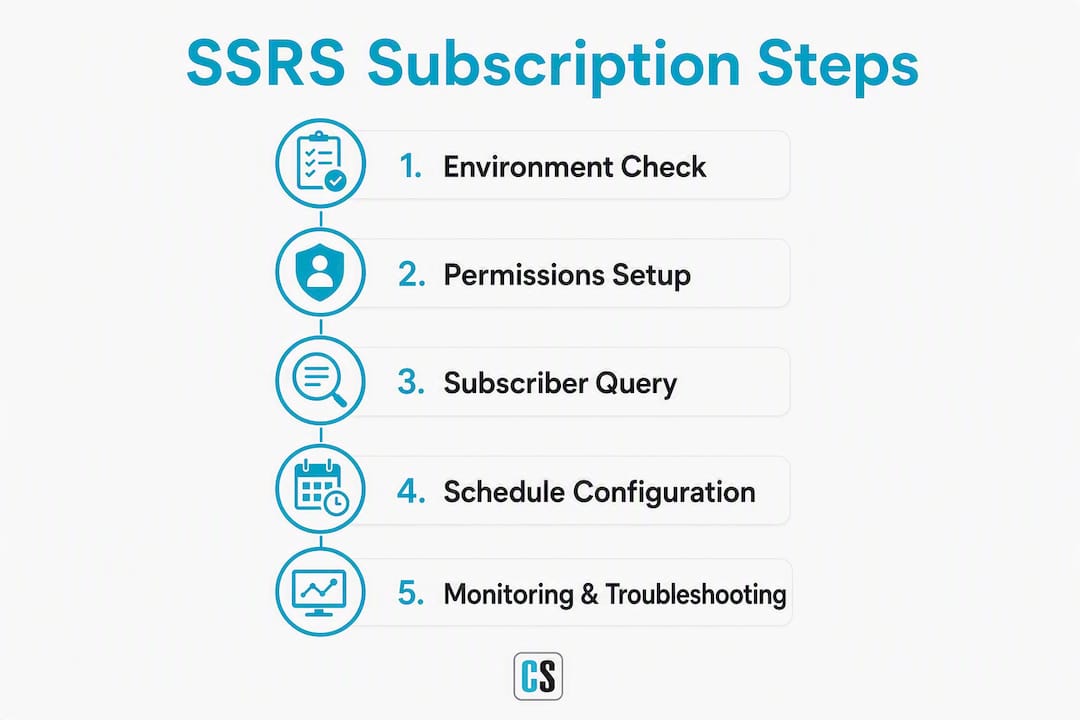
If you are migrating subscriptions from one server to another, verify the edition of the destination server before you restore the ReportServer database. A mismatch here wastes hours.
SQL Server Agent and the ReportServer database
SSRS uses SQL Server Agent to schedule and execute subscriptions. The Report Server service account must have permission to create Agent jobs on the SQL Server instance that hosts the ReportServer database. If Agent is stopped or the service account lacks the necessary rights, subscription jobs will not be created and no error will appear in the SSRS portal.
Required roles and permissions

At the database level, the RSExecRole role in both ReportServer and ReportServerTempDB must be granted to the Report Server service account. At the report level, the user creating the subscription needs the Manage individual subscriptions task assigned on the folder or report. Without it, the "New Subscription" button either does not appear or does not offer the data-driven option.
Pre-flight checklist
How does SSRS evaluate and deliver a data-driven subscription at runtime?
The runtime flow is straightforward once you see it as a pipeline. Understanding each stage tells you exactly where to look when something breaks.
The core flow: SQL Server Agent fires the subscription job → SSRS runs the subscriber dataset query → for each row returned, SSRS resolves delivery settings and parameter values → SSRS renders the report (once per unique parameter set) → the delivery extension sends the output.
The pipeline in detail
When the scheduled Agent job fires, SSRS connects to the data source defined in the subscription and executes the subscriber query. Each row in the result set represents one delivery. SSRS reads the mapped columns from that row: the recipient address, CC, subject line, render format (PDF, Excel, HTML), file name, and any report parameter values.
Parameter evaluation happens before rendering. SSRS groups rows by their unique parameter combinations. If ten recipients share identical parameter values, SSRS renders the report once and delivers that single output to all ten. If each recipient needs a different parameter value (say, a different region or account number), SSRS renders a separate report for each unique set. That distinction matters enormously for performance at scale.
Where to look when the pipeline fails
Three places cover the vast majority of failures:
- SSRS execution log. Query
ReportServer.dbo.ExecutionLog3for the subscription's report path. TheStatusandAdditionalInfocolumns usually contain the actual error text. - SQL Server Agent job history. Find the job named after the subscription GUID in SQL Server Agent → Jobs. The job step output shows whether SSRS even started the delivery.
- ReportServer.dbo.Subscriptions. The
LastStatuscolumn stores the most recent delivery outcome per subscription. A quickSELECT SubscriptionID, LastStatus, LastRunTime FROM ReportServer.dbo.Subscriptionsgives you a fast health snapshot.
How do you build a data-driven subscription step by step?
The minimal sequence: open the report in the SSRS portal → New Subscription → Data-driven → choose a data source → define or select the subscriber dataset → map dataset columns to subscription fields → configure delivery → save. Here is each step in full.
Step-by-step UI walkthrough
- Navigate to the report in the SSRS web portal. Click the ... (ellipsis) menu on the report tile and select Manage.
- Select Subscriptions from the left panel, then click + New Subscription.
- Choose Data-driven subscription when prompted for subscription type.
- Select the delivery extension (typically "Report Server Email"). Click Next.
- Choose an existing shared data source or define an embedded connection for the subscriber query. Stored credentials are required here.
- Enter or paste the subscriber dataset query (see sample below). Click Validate to confirm the query returns columns. Click Next.
- On the Subscription Fields screen, map each field (To, CC, Reply-To, Subject, Include Report, Render Format, Priority, FileName) to either a dataset column or a static value.
- Map report parameters to dataset columns or static values on the Parameters screen.
- Set the schedule (one-time, recurring, or shared schedule).
- Click Finish to save and activate the subscription.
Sample subscriber table schema and query
-- Subscriber table
CREATE TABLE dbo.ReportSubscribers (
    SubscriberID    INT IDENTITY PRIMARY KEY,
    ToEmailAddress  NVARCHAR(255) NOT NULL,
    CCEmailAddress  NVARCHAR(255) NULL,
    RenderFormat    NVARCHAR(50)  NOT NULL DEFAULT 'PDF',
    Subject         NVARCHAR(255) NOT NULL,
    ReportRegion    NVARCHAR(100) NOT NULL,
    IsActive        BIT           NOT NULL DEFAULT 1
);

-- Subscriber dataset query used by the data-driven subscription
SELECT
    ToEmailAddress,
    CCEmailAddress,
    RenderFormat,
    Subject,
    ReportRegion   AS Region   -- maps to the report's Region parameter
FROM dbo.ReportSubscribers
WHERE IsActive = 1;
This schema follows the MSSQLTips tutorial pattern for data-driven subscriptions, which recommends keeping the subscriber table normalized with an IsActive flag so you can disable individual recipients without deleting rows.
Field mapping reference
| Dataset Column | Subscription Field | Notes |
|---|---|---|
ToEmailAddress | To | Required; must be a valid SMTP address |
CCEmailAddress | CC | Optional; leave blank or NULL to skip |
Subject | Subject | Can include static text combined with a column value |
RenderFormat | Render Format | Values: PDF, Excel, HTML, MHTML, CSV |
ReportRegion | Parameter: Region | Maps directly to the report's Region parameter |
(static: true) | Include Report | Set as a static value if all recipients get the file |
Scripting subscription creation with PowerShell and RS.exe
For repeatable deployments, store your subscription definition in source control and deploy it via script. A common pattern uses the SSRS SOAP endpoint:
# High-level pattern — fill in your server URL and subscription XML
$proxy = New-WebServiceProxy -Uri "http://yourserver/ReportServer/ReportService2010.asmx?WSDL" `
         -Namespace "SSRS" -UseDefaultCredential

$matchData = "<ScheduleDefinition>...</ScheduleDefinition>"
$parameters = @(...)   # array of ParameterValue objects
$extensionSettings = @(...)

$proxy.CreateDataDrivenSubscription(
    "/YourFolder/YourReport",
    $extensionSettings,
    $parameters,
    "Description",
    "ReportServerSchedule",
    $matchData,
    $parameters
)
RS.exe scripts work similarly and are useful when you need to deploy across multiple environments as part of a CI/CD pipeline.
Pro Tip: Use a shared dataset for the subscriber query rather than an embedded one. Shared datasets can be updated independently of the subscription, and their credentials are managed centrally. An embedded dataset ties credential changes to each individual subscription, which becomes painful when you have dozens of them.
Testing before you go live
- Run the subscriber query directly in SSMS and confirm the column names match exactly what you mapped in the subscription wizard.
- Send a test email from the Report Server host using PowerShell to confirm SMTP connectivity before the subscription fires.
- Create a single-row test version of your subscriber table (one known-good email address, one parameter value) and run the subscription manually from the portal.
- Check
ReportServer.dbo.Subscriptions.LastStatusimmediately after the test run.
How do you send email only when the query returns rows?
The pattern is simple: write your subscriber query so it returns zero rows when there is nothing to send. SSRS treats an empty result set from a data-driven subscription as "no deliveries to make" and exits cleanly without error.
Key behavior: SSRS does not send any email when the subscriber dataset query returns zero rows. No error is logged; the subscription simply completes with no deliveries. This is the correct, supported mechanism for conditional sending.
Example: send only when exceptions exist
-- Only returns rows (and triggers delivery) when overdue orders exist
SELECT
    m.ToEmailAddress,
    m.RenderFormat,
    m.Subject,
    o.RegionCode AS Region
FROM dbo.ReportSubscribers m
INNER JOIN dbo.Orders o
    ON o.RegionCode = m.ReportRegion
WHERE o.DueDate < GETDATE()
  AND o.Status   <> 'Closed'
  AND m.IsActive  = 1;
When no overdue orders exist, the INNER JOIN produces zero rows and no report is sent. This is the pattern the Stack Overflow community confirms as the standard approach for conditional delivery.
An alternative for complex conditions is a wrapper stored procedure that performs a pre-check and returns an empty result set early. This keeps the subscription query clean and puts conditional logic in a single, testable object.
Testing the conditional behavior
- Run the query in SSMS with conditions that should produce zero rows. Confirm the result set is empty.
- Enable verbose SSRS logging temporarily (
<RSTrace>inrsreportserver.config) and run the subscription. Confirm the log shows "no rows returned" or equivalent. - Insert a test row that satisfies the condition, run the subscription again, and confirm delivery.
- Remove the test row and run once more to confirm no delivery occurs.
How do you manage and monitor subscriptions day to day?
The ReportServer database is your primary operations dashboard. Most of what you need is in three tables.
Key ReportServer tables for diagnostics
dbo.Subscriptions— one row per subscription;LastStatus,LastRunTime,EventType, andDataSettings(the subscriber query XML) are the most useful columns.dbo.ReportSchedule— links subscriptions to their Agent job schedules.dbo.ExecutionLog3— per-execution detail including render time, row count, and error text.
-- Quick health check: last run status for all data-driven subscriptions
SELECT
    s.SubscriptionID,
    c.Name          AS ReportName,
    s.LastStatus,
    s.LastRunTime,
    s.EventType
FROM ReportServer.dbo.Subscriptions s
JOIN ReportServer.dbo.Catalog       c ON c.ItemID = s.Report_OID
WHERE s.DataSettings IS NOT NULL   -- data-driven subscriptions have a DataSettings XML blob
ORDER BY s.LastRunTime DESC;
After a server migration, run this query on the destination server to confirm all subscriptions were carried over and that Agent jobs exist for each one. Missing Agent jobs after a restore usually indicate a service account permission gap on the new SQL instance.
Operational housekeeping checklist
- Disable stale subscriptions. Set
IsActive = 0in your subscriber table rather than deleting rows; this preserves history and makes re-enabling easy. - Reassign ownership after migrations. Subscriptions are owned by the user account that created them. If that account does not exist on the new server, the subscription will fail. Use the
ReportServer.dbo.Subscriptionstable to update theOwnerIDto a valid service account. - Verify Agent jobs weekly. A quick query against
msdb.dbo.sysjobsfiltered by jobs whose names start with the SSRS subscription GUID prefix confirms all jobs are present and enabled. - Audit
LastStatuson a schedule. Any subscription with aLastStatusvalue other than "Mail sent to..." or "Done" needs investigation before the next run.
What are the most common data-driven subscription errors and how do you fix them?
Most failures fall into five categories. Here is each one with the error text you will actually see and the specific fix.
Diagnostic shortcut: Always check
ReportServer.dbo.Subscriptions.LastStatusand the SQL Server Agent job step output together. TheLastStatuscolumn tells you what failed; the Agent job history tells you where in the pipeline it failed.
Error 1: No rows returned / subscription completes with no deliveries
Symptom: Subscription runs, LastStatus shows "Done" or similar, but no email arrives.
Cause: The subscriber query returned zero rows, either intentionally (conditional send) or because of a data issue (wrong IsActive filter, wrong join condition, empty table).
Fix: Run the subscriber query directly in SSMS against the same data source the subscription uses. Confirm rows are returned. Check that stored credentials on the data source are valid and not expired.
Error 2: SMTP relay failure
Symptom: LastStatus shows "Failure sending mail: The SMTP server requires a secure connection" or "5.7.1 Client was not authenticated."
Cause: The SMTP settings in rsreportserver.config do not match the relay's authentication requirements, or the service account lacks relay permission.
Fix: Open Reporting Services Configuration Manager → E-mail Settings. Verify the SMTP server address, port, and authentication method. Test with a PowerShell Send-MailMessage from the Report Server host using the same credentials.
Error 3: Execute permission denied on xp_sqlagent_notify
Symptom: Subscription job is never created; SSRS logs show "EXECUTE permission was denied on the object 'xp_sqlagent_notify'."
Cause: The Report Server service account is missing RSExecRole membership or lacks explicit execute rights on the extended stored procedure.
Fix: In SSMS, run EXEC sp_addrolemember 'RSExecRole', 'YourServiceAccount' in both ReportServer and ReportServerTempDB. If the error persists, grant execute explicitly: GRANT EXECUTE ON xp_sqlagent_notify TO [YourServiceAccount].
Error 4: Subscription job not created after migration
Symptom: Subscriptions exist in ReportServer.dbo.Subscriptions but no corresponding Agent jobs appear in msdb.
Cause: After restoring the ReportServer database to a new server, SSRS recreates Agent jobs on first subscription trigger, but only if the service account has the necessary Agent permissions. A Standard Edition mismatch (see Straight Path Solutions' migration guide) can also prevent job creation entirely.
Fix: Verify edition, confirm RSExecRole membership, then open each affected subscription in the portal and click Edit → Save to force SSRS to recreate the Agent job.
Error 5: Parameter mismatch / report renders with wrong values
Symptom: Report delivers but shows data for the wrong region, account, or date range. Cause: The dataset column name in the mapping does not exactly match the report parameter name (case-sensitive in some configurations), or a static value was accidentally left in the parameter mapping instead of the dataset column. Fix: Open the subscription editor, go to the Parameters screen, and confirm each parameter is mapped to the correct dataset column. Run the subscriber query in SSMS and verify the column values are what you expect.
Pro Tip: After any SSRS patch or cumulative update, re-test your data-driven subscriptions before the next scheduled run. Patch-level mismatches between the Report Server and the ReportServer database schema are a documented source of timeout errors and subscription job failures. ChristianSteven Software field experience confirms this is one of the most frequently overlooked post-patching steps.
How do you keep data-driven subscriptions performant at scale?
A subscription delivering to 50 recipients behaves very differently from one delivering to 5,000. The rendering engine, SMTP relay, and SQL Server Agent all have limits, and hitting them produces failures that look like random errors.
Reduce render count first
SSRS renders one report per unique parameter set, not one per recipient. Group recipients who share identical parameter values in your subscriber query so SSRS renders once and delivers to multiple addresses. For a regional sales report where 20 managers all need the "Northeast" region, a single render serves all 20. Structure your subscriber table and query to make this grouping explicit.
For very high volumes, file-share delivery is faster than email. Render reports to a network share and send a notification email with a link rather than attaching the file. This offloads the attachment overhead from the SMTP relay and keeps email sizes small.
Scheduling and batching
- Schedule heavy subscriptions during off-peak hours (overnight or early morning) to avoid competing with interactive report traffic.
- Split large subscriber sets across multiple subscriptions with staggered schedules rather than running one subscription with thousands of rows. A single subscription with a very large number of rows can hold the rendering queue for hours.
- Set a realistic timeout value in
rsreportserver.config(<ExecutionTimeout>). The default is 1,800 seconds; a complex report rendering to Excel for 5,000 recipients will exceed that.
Monitor queue depth and concurrency
Query ReportServer.dbo.ExecutionLog3 for average render times by report path. If render times are climbing week over week, the report's underlying query or data volume is growing faster than the schedule allows. Either optimize the report query, reduce delivery frequency, or move to a file-share model for bulk distribution.
Test at scale with a representative sample before enabling a new high-volume subscription in production. A 100-row test that completes in two minutes does not predict behavior at 2,000 rows when the report hits a complex dataset.
How do you secure subscription data and meet governance requirements?
Treat subscriber data and parameter values as sensitive by default. A subscription dataset query can expose email addresses, account numbers, and business-critical parameters to anyone who can edit the subscription.
Governance baseline: Restrict the ability to create or modify data-driven subscriptions to a named group of report authors. Never store plaintext credentials or sensitive parameter values in an embedded dataset query. Use secured shared data sources with least-privilege service accounts for all subscriber queries.
Governance controls checklist
- Assign the Manage individual subscriptions task only to users who genuinely need it. Audit this list quarterly.
- Use shared data sources with stored credentials for subscriber queries. Rotate those credentials on the same schedule as your service account password policy.
- For reports that deliver sensitive data (financial statements, HR data), restrict the output destination to an authenticated file share rather than open SMTP delivery.
- Log subscription edits. The
ReportServer.dbo.Subscriptionstable recordsModifiedDateandOwnerID; combine this with SQL Server Audit or a change-data-capture job to track who changed what and when. - Mask or redact sensitive parameter values in the subscriber table. If a parameter carries a Social Security Number or account password, that value should be encrypted at rest in the subscriber table and decrypted only at query time by a stored procedure with restricted execute rights.
Pro Tip: Never use sa or a sysadmin account as the Report Server service account. A least-privilege account that has only RSExecRole membership and the specific permissions listed in the pre-flight checklist above is far easier to audit and far less damaging if compromised.
What ChristianSteven Software has learned from enterprise SSRS deployments
Across more than two decades of automating BI report delivery, ChristianSteven Software has seen the same operational gaps appear repeatedly in enterprise SSRS environments. The most common: teams build data-driven subscriptions that work perfectly in development and fail silently in production because nobody validated the subscriber table, the SSRS patch level, or the Agent job permissions on the destination server.
Operational reality: A data-driven subscription is only as reliable as the subscriber table behind it. Stale rows, expired credentials on the shared data source, and edition mismatches after a migration account for the majority of production failures ChristianSteven Software encounters in customer environments.
Operational checklist for reliability
- Pre-migration: Document every data-driven subscription (query, field mappings, schedule, owner). Export the
ReportServer.dbo.Subscriptionstable. Confirm the destination server's edition before the restore. - Post-migration: Run the diagnostic query from the Management section above. Confirm Agent jobs exist for every subscription. Open and re-save any subscription that does not have a corresponding Agent job.
- Patch validation: After any SQL Server or SSRS cumulative update, run each data-driven subscription manually and check
LastStatus. Patch-level mismatches between the Report Server binaries and theReportServerdatabase schema are a documented source of timeout errors. - Subscriber data hygiene: Review the subscriber table monthly. Disable rows for departed employees, changed email addresses, or inactive accounts. An
IsActiveflag costs nothing and prevents a cascade of delivery failures. - Weekly monitoring: Query
LastStatusandLastRunTimefor all data-driven subscriptions. Any subscription that has not run within its expected window is a problem worth investigating before the business notices.
For teams that need automated SSRS report distribution beyond what native subscriptions provide, ChristianSteven Software's tooling adds scheduling flexibility, error handling, and delivery options that the built-in SSRS subscription engine does not offer out of the box.
Key Takeaways
Data-driven subscriptions in SSRS are only as reliable as the edition, permissions, subscriber query, and monitoring practices behind them.
| Point | Details |
|---|---|
| Edition and mode first | Data-driven subscriptions require Enterprise or BI edition in Native Mode; Standard Edition blocks creation even when subscription records exist in the database. |
| Subscriber query is the contract | Every delivery field (To, CC, Subject, Format, parameter values) must map to a dataset column or static value; a schema mismatch causes silent failures. |
| Empty result set = no send | SSRS sends nothing when the subscriber query returns zero rows, making this the correct mechanism for conditional delivery. |
| Monitor LastStatus weekly | Query ReportServer.dbo.Subscriptions.LastStatus and Agent job history together; they are the fastest path to diagnosing any delivery failure. |
| ChristianSteven Software for scale | When native SSRS subscriptions reach their limits, ChristianSteven Software provides enterprise-grade scheduling, error handling, and multi-format delivery across SSRS, Power BI, Tableau, and Crystal Reports. |
The gap between what data-driven subscriptions promise and what actually breaks them
The official documentation makes data-driven subscriptions look clean. Define a query, map some fields, set a schedule, and SSRS handles the rest. That picture is accurate for a single-server development environment with ten recipients and a simple report. It starts to fray at the edges the moment you move to production.
The failures that actually hurt teams are not the ones the documentation warns you about. They are the ones that happen three months after go-live: a service account password rotates and nobody updates the shared data source credentials; a SQL Server cumulative update ships and the subscription starts timing out with no obvious cause; a migration to a new server completes successfully by every metric except that the destination is Standard Edition and nobody checked. These are not edge cases. They are the normal operating conditions of an enterprise SSRS environment.
The discipline that prevents them is not complicated. It is a subscriber table with an IsActive flag, a weekly query against LastStatus, a documented pre-migration checklist, and someone whose job it is to look at the results. The technical setup described in this guide takes a few hours. The operational discipline is what makes it run for years.
*— Christian Ofori-Boateng
When native SSRS subscriptions are not enough
Native SSRS data-driven subscriptions are a capable starting point, but they have real ceilings: no built-in retry logic, limited delivery destinations, no cross-platform support, and no visual dashboard for monitoring subscription health across dozens of reports.

ChristianSteven Software fills those gaps directly. PBRS for Power BI and the broader ChristianSteven platform extend the same data-driven delivery model to Power BI, Tableau, and Crystal Reports, with enterprise scheduling, conditional delivery, multi-format export (PDF, Excel, and more), and automated error handling built in. SOC 2 Type II certified and deployed in production environments across the United States for over two decades, ChristianSteven Software gives IT and BI teams the reliability and audit trail that native SSRS subscriptions cannot provide on their own.
If your team is hitting the limits of built-in SSRS delivery or managing subscriptions across multiple BI platforms, start a free trial of PBRS or visit go.christiansteven.com to see the full platform.
Useful sources
- SSRS Data Driven Subscription — MSSQLTips
- SSRS Data-Driven Subscriptions Missing After Migration to SQL Server 2022 — Straight Path Solutions
- SSRS: How to migrate Report Subscriptions from one server to another — SQL Circuit
- SSRS Data-Driven email only when query returns data — Stack Overflow
- Create SSRS Data Driven Subscriptions on Standard Edition — SQL Server Central
- Data driven subscription query parameters in SSRS — DBA Stack Exchange
FAQ
What edition of SQL Server is required for data-driven subscriptions?
Data-driven subscriptions require SQL Server Enterprise or Business Intelligence edition running SSRS in Native Mode. Standard Edition does not support creating them, even when subscription records already exist in the ReportServer database.
What happens when the subscriber query returns no rows?
SSRS completes the subscription run with no deliveries and no error. This is the standard mechanism for conditional sending: write your query to return zero rows when there is nothing to send.
How do you fix a data-driven subscription that disappeared after migration?
Check the destination server's SQL Server edition first. If it is Standard Edition, the data-driven option will not appear in the portal. If the edition is correct, verify RSExecRole membership for the service account and re-save each affected subscription to force SSRS to recreate the Agent job.
Can you script the creation of data-driven subscriptions?
Yes. The SSRS SOAP API (ReportService2010.asmx) exposes a CreateDataDrivenSubscription method that PowerShell can call. RS.exe scripts are an alternative for teams that prefer command-line deployment as part of a CI/CD pipeline.
How does ChristianSteven Software extend native SSRS subscription capabilities?
ChristianSteven Software's platform adds retry logic, multi-format export, conditional delivery, and a centralized monitoring dashboard that native SSRS subscriptions do not provide. It supports SSRS alongside Power BI, Tableau, and Crystal Reports from a single interface.