
The best Microsoft Teams reporting setup pairs a governed automation layer with BI integration, not a single dashboard or a manual export routine as explained in AI productivity workflows that save time and ensure accuracy. It schedules the pull, formats the output, enforces role-based access, and delivers finished reports to the right inbox or channel without a human touching the process. Success looks like this: usage and quality data land on stakeholders' desks on time, every time, with a full audit trail behind them.
TL;DR:
- Most organizations benefit from combining built-in admin reports, BI integration, and automated on-premise workflows for scalable and reliable Teams reporting.
- Core metrics to track include active users, meeting and message counts, participant numbers, call minutes, and channel activity, with quality indicators like jitter and packet loss also essential.
- Effective reporting solutions must ensure security, automation, and delivery flexibility, with failure handling and access controls critical for compliance-heavy organizations.
- Proper planning involves defining stakeholder needs, prototyping data, automating, governing permissions, and establishing ownership to sustain long-term reporting accuracy.
- Overcoming common issues requires managing data latency, standardizing metric definitions, securing permissions, and implementing retries and audit trails for consistent, trustworthy reports.
Table of Contents
- Which Types of Tools Handle Microsoft Teams Reporting?
- What Metrics Should IT Teams Actually Track?
- How Do You Evaluate a Teams Reporting Solution?
- How Do You Roll Out Teams Reporting Step by Step?
- Why On-Premise Automation Fits Enterprise Teams Reporting
- Common Challenges With Microsoft Teams Reporting
- The Real Gap in How Teams Talk About Reporting
- Automate Your Teams and BI Reporting Without the Manual Grind
- Sources
- FAQ
Which Types of Tools Handle Microsoft Teams Reporting?
Four categories cover almost every organization's needs, and most enterprises end up using two or three of them together rather than picking just one.
Built-in admin and tenant reports are the fastest starting point. The Teams admin center gives IT staff on-demand access to usage summaries, call quality dashboards, and per-user activity breakdowns, and Microsoft's own reference documentation lays out exactly where each report lives and what its fields mean. These reports work well for a quick health check or a one-off troubleshooting session, but they were not built for recurring distribution to twenty stakeholders every Monday morning.
BI integration is the next step up. Pulling Teams telemetry into a platform like Power BI through connectors or scheduled extracts turns raw usage logs into trend lines, department comparisons, and executive scorecards. Self-hosted platforms such as Metabase offer a similar path for teams with data engineering capacity who want interactive dashboards without a heavier BI license.
Third-party monitoring and observability tools form a specialized category focused on call quality, network diagnostics, and real-time alerting, often adding deeper drill-downs than the admin center provides.
On-premise or enterprise report automation is the layer that makes any of the above repeatable at scale:
- Converts raw exports into formatted PDF or Excel deliverables
- Schedules recurring runs tied to business calendars, not just fixed intervals
- Delivers to email, shared drives, collaboration channels, or databases automatically
- Retries failed jobs and logs every delivery for audit purposes
The trade-off is straightforward: admin reports are free and immediate but not scalable; BI integration adds analytical depth but needs someone to maintain the model; automation adds governance and reliability but requires setup time up front.
What Metrics Should IT Teams Actually Track?
Reporting only works when everyone agrees on what the numbers mean. Microsoft Teams usage exploded after 2020 and now anchors daily collaboration for a huge share of the workforce, which is exactly why usage data at that scale demands consistent, well-defined metrics rather than ad hoc counting.
The core usage metrics worth tracking include:
- Active users: distinct users engaging with Teams in a given day, week, or month
- Meeting minutes: total time spent in scheduled and ad hoc meetings
- Participant counts: number of attendees per meeting, useful for gauging meeting bloat
- PSTN minutes: call time routed through the public telephone network
- Message counts: chat and channel messages sent, a proxy for asynchronous engagement
- Channel activity: posts, replies, and file shares within specific teams or channels
Call and meeting quality indicators matter just as much as volume. Jitter, packet loss, and audio/video quality scores flag network problems before they become help desk tickets. Operational metrics like data latency (how fresh the numbers are when a report lands), retention windows, and refresh cadence decide whether a dashboard reflects reality or yesterday's snapshot.
Pro Tip: Define your metric glossary before you build a single report. Teams that skip this step end up with three departments arguing over three different definitions of "active user."
How Do You Evaluate a Teams Reporting Solution?
Run any candidate solution, built-in or third-party, against these six criteria before committing engineering time to it.
- Security and compliance. Confirm how the tool handles data access controls, whether it supports anonymization for user-level data, and whether it produces audit logs that satisfy your compliance team. Privacy guidance around user data should shape how granular your reports get and who sees them.
- Automation depth. Look for true scheduling (not just manual refresh), event-triggered runs, dynamic recipient lists that update as org charts change, and retry logic when a delivery fails.
- Delivery endpoints and formats. The tool should export to PDF and Excel at minimum, and deliver via email, collaboration channels, SFTP, or direct database writeback depending on the recipient.
- Integration and extensibility. Check for REST API access, native connectors, and whether the underlying data model is queryable outside the tool's own interface.
- Scalability and monitoring. Ask how many concurrent jobs the platform supports, how it throttles under load, and how errors surface to an admin instead of silently failing.
- Total cost of ownership. Weigh the engineering hours needed to stand up and maintain the solution against the support model the vendor offers.
Pro Tip: Ask any vendor to show you a failed delivery scenario during a demo, not just a successful one. How a tool handles failure tells you more than how it handles the happy path.
Security and automation depth should carry the most weight for regulated industries; smaller teams with lighter compliance burdens can lean harder on delivery flexibility and cost.
How Do You Roll Out Teams Reporting Step by Step?
Moving from "we should report on this" to a production pipeline takes five distinct stages, and skipping one almost always causes rework later.
- Plan. Identify who actually needs each report, which metrics they care about, how often they need it, and where it should land, inbox, Teams channel, or shared drive.
- Prototype. Pull a sample dataset from the admin center or your BI connector and validate that metric definitions match what stakeholders expect before building anything permanent.
- Automate. Build the schedules, test at least one full delivery cycle end to end, and configure retry and alerting behavior for failed jobs.
- Govern. Apply role-based access control, anonymize user-level data where policy requires it, and set retention rules so old reports don't linger indefinitely.
- Operate. Run periodic health checks, monitor for silent failures, and document who owns the pipeline so it survives staff turnover.
The general pattern here, define metrics, extract, transform, schedule, deliver, mirrors how most enterprise BI teams already structure recurring reporting work, so Teams reporting rarely needs a process invented from scratch.
Why On-Premise Automation Fits Enterprise Teams Reporting
Two decades of building report automation across Power BI, SSRS, Tableau, and Crystal Reports environments teaches a consistent lesson: the organizations that succeed at reporting are the ones that treat delivery as a governed process, not a series of one-off exports. SOC 2 Type II certification matters directly here because Teams usage data often includes personally identifiable information that regulated industries cannot hand off casually.
The capabilities that solve the operational problems IT teams hit repeatedly include:
- Scheduling tied to business calendars, not just fixed time intervals
- Format conversion to PDF, Excel, and other standard deliverables
- Event-triggered workflows that fire when new data lands, not on a rigid clock
- Multiple delivery endpoints, including email, cloud storage, and database writeback
- Full audit trails documenting every report generated and delivered
Removing manual handoffs from this chain is what actually reduces compliance risk. Every automated step is a step nobody can forget to run, forget to format correctly, or forget to send to the right recipient list.
Common Challenges With Microsoft Teams Reporting
The most frequent complaint IT teams raise is data latency confusion, stakeholders expect real-time numbers, but many admin center reports refresh on a delay of a day or more. Set expectations up front about refresh cadence, and label every report with its data-as-of timestamp so nobody mistakes a Tuesday snapshot for live data.
Metric definition drift is the second big headache. A "message" in one report might exclude system-generated notifications while another includes them, producing numbers that don't reconcile across dashboards. Lock definitions in a shared glossary before reports go into production, and revisit it whenever Microsoft updates its own reporting schema.
Permission and access errors show up constantly when reports include cross-department data. If a report puller lacks the right admin role, exports silently return partial data instead of throwing a clear error, which is worse because nobody notices until numbers look wrong weeks later. Assign a dedicated service account with documented, auditable permissions rather than relying on individual admin credentials that change when someone leaves the team.
Delivery failures, a bounced email, a full mailbox, an expired SFTP credential, are the most common reason a "working" report pipeline quietly stops producing anything. Build retry logic and failure alerting into every scheduled job rather than discovering the gap when someone asks why they haven't seen a report in three weeks.
Finally, anonymization gets applied inconsistently across teams. One department strips names from exports; another leaves full identifiers in place because nobody assigned ownership of the policy. Decide anonymization rules centrally, document them, and apply them at the automation layer so individual report builders can't opt out by accident.
The Real Gap in How Teams Talk About Reporting
Most advice on Teams reporting fixates on which dashboard looks best, and that misses the actual failure point. Dashboards rarely break. Delivery breaks. A scheduled export silently stops running, a recipient list goes stale after a reorg, or a refresh cycle drifts out of sync with when leadership actually reviews the numbers. None of that shows up in a screenshot of a polished chart.
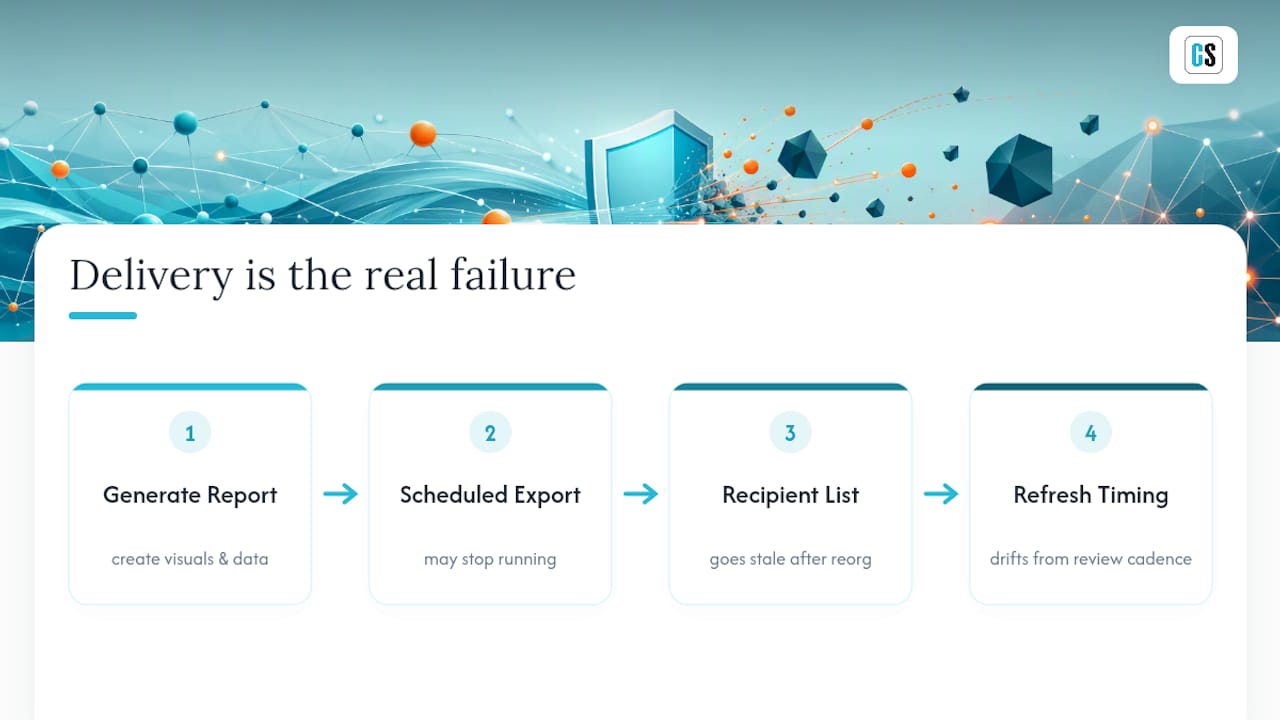
The conventional advice, "pick the tool with the best visuals," also skips over governance almost entirely. Anonymization, audit trails, and retry logic sound boring next to a heat map, but they're the difference between a reporting pipeline that survives an audit and one that generates a scramble when a compliance officer asks who had access to raw user data six months ago.
If there's one priority to get right first, it's this: decide who owns the pipeline before you decide what the pipeline shows. A beautifully designed report with no clear owner degrades within two quarters. A modestly designed report with clear ownership, documented definitions, and automated delivery keeps working long after the person who built it moves to a different team.
— Christian Ofori-Boateng
Automate Your Teams and BI Reporting Without the Manual Grind
This software is a practical next step for any IT or BI team tired of babysitting exports by hand. PBRS handles Power BI report automation directly, scheduling recurring runs, converting outputs to PDF or Excel, triggering deliveries from new data events, and routing finished reports to email, cloud storage, or database targets, all with a full delivery audit trail behind it.

This fits enterprise BI teams pulling Teams telemetry into Power BI dashboards, regulated industries that need documented delivery logs for audits, and any organization running cross-department reporting on a fixed schedule. Teams using Tableau instead can look at ATRS for the same kind of automated, scheduled distribution.
A demo walks through building a schedule, testing a sample delivery, and reviewing report templates so you can see exactly how a failed job gets caught and retried before it ever reaches a stakeholder's inbox. Start with a Power BI automation trial or check out Tableau report automation if that's your platform of choice.
Sources
- Microsoft Teams statistics (Business of Apps)
- Aka
- Dashboards: Build custom reports you can actually work from | ClickUp
FAQ
What Is the Best Microsoft Reporting Tool?
There isn't one universal answer, since it depends on the platform behind your data. For Power BI environments, a dedicated automation layer like PBRS handles scheduling and delivery that the built-in admin center can't; for Teams-specific usage data, pairing the Teams admin center reports with a BI integration layer covers both immediate visibility and scheduled distribution.
What Are Some Useful Microsoft Teams Tips and Tricks?
Set report refresh cadences to match how often stakeholders actually check them, not the platform's default interval, and build a shared metric glossary before multiple teams start pulling their own numbers. Using interactive dashboards instead of static weekly exports also cuts down on the slide-deck cycle that eats analyst time.
Can Employers Track Employees Through Microsoft Teams?
Employers can access usage data like message counts, call activity, and status changes through admin reports, but the level of detail available depends on tenant configuration and organizational policy. Any reporting that surfaces user-level activity should follow documented privacy and data handling guidance rather than being pulled ad hoc.
Is There a Way to Keep Teams Status Showing as Active?
Microsoft's presence system is designed to reflect genuine activity, and attempting to artificially force an "available" status generally runs against acceptable use policies at most organizations. IT teams focused on legitimate reporting should track actual engagement metrics instead, since presence manipulation defeats the purpose of accurate usage data.
How Often Should Teams Usage Reports Be Delivered?
Cadence should match the decision the report supports. Operational health checks often run daily, while executive usage summaries typically work well on a weekly or monthly schedule tied to review meetings rather than an arbitrary calendar interval.