
The three supported paths for scheduled OneDrive delivery are a Power BI subscription pointed at a OneDrive or SharePoint folder, a Power Automate export flow, and enterprise on-premises automation for complex or high-volume needs. For most teams, start with a Power BI subscription or the Power Automate "Export to file for paginated reports" template. The main thing that trips people up isn't the setup. It's licensing and the 250 MB file-size ceiling.
TL;DR:
- Files exceeding 250 MB in subscription exports require splitting or filtering to avoid delivery failures.
- Proper folder permissions, naming conventions, and retention policies are critical for long-term management and audit readiness.
- Power BI subscriptions are ideal for simple, scheduled PDF or PowerPoint exports, while Power Automate offers more format flexibility for ad hoc or parameterized exports.
- For complex or high-volume needs, enterprise automation tools like ChristianSteven Software's PBRS provide multi-destination delivery and better compliance controls.
- Licensing considerations include needing Power BI Pro or Premium licenses and ensuring connectors and capacity are configured correctly before automation.
Table of Contents
- What You Need Before You Set Up OneDrive Report Delivery
- Which Method Should You Use to Send Reports to OneDrive?
- How Do You Set Up Automated Report Delivery to OneDrive?
- How Should You Name and Manage Delivered Report Files?
- What Limits and Risks Should You Plan For?
- When Do You Need More Than Microsoft's Native Tools?
- The Real Bottleneck Isn't the Tooling, It's the Governance Plan
- Where ChristianSteven Software Fits Once You Outgrow Native Flows
- Sources
- FAQ
What You Need Before You Set Up OneDrive Report Delivery
Before touching a subscription or a flow, confirm four things or you'll spend an afternoon debugging a "permission denied" error that has nothing to do with permissions.
- Licensing: attaching a full report to a subscription requires a Power BI Pro or Premium Per User (PPU) license, or the report must live in a Premium capacity workspace.
- Connectors: Power Automate needs the Power BI connector's "Export to File" action enabled, with a user consenting to the connection the first time it runs.
- Storage target: decide upfront whether files land in OneDrive for work or school or a SharePoint document library. SharePoint tends to scale better once more than one team needs access.
- Execution identity: decide whether the flow runs under a personal account or a dedicated service account. Service accounts avoid the classic failure where a flow breaks because someone left the company and their license lapsed.
Reserved capacity matters more than people expect. Exporting large paginated reports through Power Automate or a subscription can require dedicated workspace capacity, not just a Pro license, especially when report size or concurrent runs climb.
Which Method Should You Use to Send Reports to OneDrive?
Each path fits a different operational reality, and picking the wrong one is usually why teams end up rebuilding their delivery pipeline six months in.
- Power BI subscriptions to OneDrive/SharePoint. The simplest option. It creates a built-in audit trail and works cleanly for full-report exports as PDF or PowerPoint, and it sidesteps email attachment limits entirely. Best for stakeholders who just need a dashboard snapshot on a schedule.
- Power Automate export flows. More flexible on format: Excel, CSV, and Word are on the table alongside PDF. You can parameterize exports, branch logic, and trigger flows on events rather than just a clock. This is the right call when a paginated report needs to land as an editable spreadsheet rather than a static PDF.
- Enterprise on-premises automation. Tools built for report bursting, multi-destination delivery, or strict data residency rules. Relevant once you're delivering hundreds of personalized report variants or operating under compliance constraints that cloud-native flows don't address cleanly.
The trade-offs boil down to format flexibility versus setup simplicity, and governance control versus convenience. A subscription takes ten minutes to configure. An on-prem bursting engine takes longer to stand up but handles volume and compliance that neither cloud option was built for.
How Do You Set Up Automated Report Delivery to OneDrive?
Whether you're configuring a Power BI subscription or a Power Automate flow, the sequence is nearly identical. Here's the order that avoids the most common dead ends.
- Pick your action. Use "Attach full report" inside a Power BI subscription for PDF or PPTX output. Use "Export to file for paginated reports" in Power Automate if you need Excel, Word, or an accessible PDF instead.
- Select the workspace, report, and export format. Confirm the report actually lives in a workspace your license or capacity tier can export from.
- Choose the destination folder. Point the flow or subscription at a specific OneDrive for work or school folder, or a SharePoint document library. Avoid personal "My Files" drives for anything shared.
- Configure filename behavior. Append a timestamp if you want a running archive for audit purposes. Use a fixed filename with overwrite if the goal is a single, always-current dashboard file.
- Set the schedule or trigger. Recurrence for time-based delivery, or an event trigger (data refresh complete, row added to a source table) for event-driven delivery.
- Save, then run a manual test. Open the delivered file immediately and check formatting, page breaks, and any dynamic parameters before trusting the schedule.
- Watch for these failure points: connector consent that expired, a service account without folder write permission, a flow that silently fails because workspace capacity was exceeded during a large export.
Pro Tip: Run your first three scheduled deliveries manually before trusting the automated trigger. Formatting issues in paginated reports almost always show up in the second or third run, not the first, once real data volume kicks in.
If a flow fails silently, check connector consent first. Expired consent is the single most common cause of a Power Automate export that "just stops working" with no obvious error in the flow history.
How Should You Name and Manage Delivered Report Files?
File naming isn't a cosmetic detail. It determines whether your delivery pipeline is auditable six months from now or a folder full of identically named files that overwrote each other.
- Append a timestamp to the filename for anything that needs a historical record. This turns your delivery folder into a chronological archive you can hand to an auditor without extra work.
- Use a fixed filename with overwrite only for single-purpose dashboards where the latest version is the only one that matters.
- Segment delivery by audience using separate SharePoint libraries or subfolders, and assign access through AD or Microsoft 365 groups rather than sharing a folder link broadly. Finance reports and Operations reports belong in different libraries with different group permissions, not the same folder with different subfolders and hope.
- Apply SharePoint metadata tags and retention policies so old exports get flagged for cleanup automatically instead of accumulating indefinitely.
- If archive growth becomes a storage or search problem, build a cleanup flow that purges files past a defined retention window rather than doing it manually every quarter.
What Limits and Risks Should You Plan For?
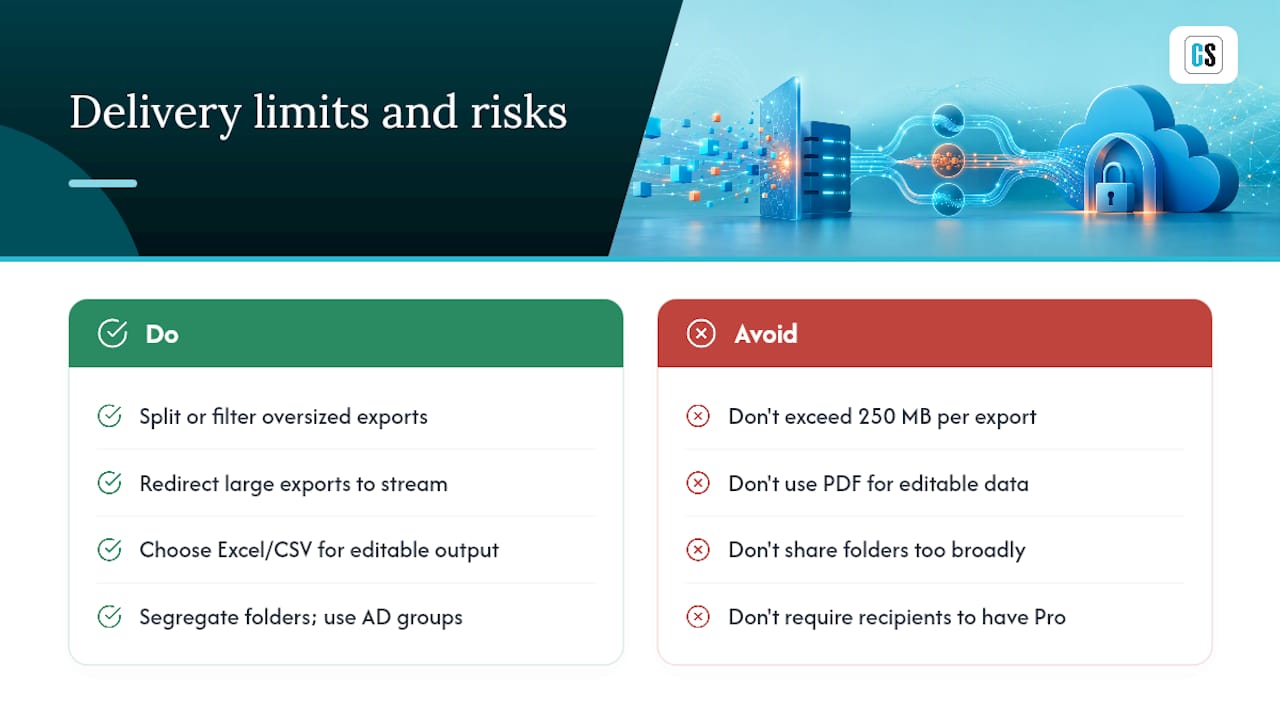
A widely cited operational ceiling puts the practical file size limit for subscription-based delivery at around 250 MB — well above typical email attachment caps, but a real wall once reports include heavy embedded visuals or large datasets. Oversized exports need to be split, filtered, or redirected to a flow that streams data differently.
Format choice also limits what happens after delivery: a PDF is final and unstyled, while Excel or CSV output stays editable, which matters if downstream users need to filter or pivot the data themselves. Shared folders are the other quiet risk. A folder shared too broadly exposes every historical file inside it, not just the newest one, so segregate by audience and use AD groups rather than direct sharing links. On licensing, remember that only the person or account building the export needs a Pro or PPU license. Recipients who simply open the delivered file in OneDrive need nothing beyond standard access.
When Do You Need More Than Microsoft's Native Tools?
Cloud-native flows cover a lot of ground, but certain signals mean it's time to look at dedicated automation software instead of stretching a Power Automate flow past its comfort zone.
- Exports that regularly approach or exceed the 250 MB ceiling, or reports that need to be split and burst to dozens of recipients with personalized filters.
- Compliance or data residency requirements that call for on-premises processing rather than cloud-hosted flows.
- Delivery that spans multiple destinations at once (OneDrive, email, a database, a Teams channel) from a single scheduled job.
- Event-driven triggers more complex than "row added" or "refresh complete."
This is the gap ChristianSteven Software's product line is built for. PBRS handles Power BI and SSRS scheduling and delivery, ATRS covers Tableau, CRD covers Crystal Reports, and IntelliFront BI centralizes dashboards and KPIs across sources. The company holds SOC 2 Type II certification and has focused on report automation for more than two decades. Before adopting an on-prem tool, check whether it supports bursting, multiple simultaneous destinations, and audit logging beyond what a single flow provides.
The Real Bottleneck Isn't the Tooling, It's the Governance Plan
Most guidance on this topic treats delivery as a technical problem: pick the right connector, click the right button, done. That's backwards. The actual failure mode I see in most Power Automate and subscription setups isn't a broken flow. It's a folder with no permission structure, a filename convention nobody agreed on, and six months of exports nobody can find when an auditor asks for last March's numbers.

Power BI subscriptions and Power Automate templates are genuinely good for what they do, and Microsoft's documentation on both is solid. But they solve the delivery problem, not the governance problem. Timestamped archives, segmented SharePoint libraries, and AD group permissions matter more to long-term operational health than which export action you picked.
If you're setting this up for the first time, get the folder structure and permission model right before you automate anything. A flow that reliably delivers a poorly organized report is still a poorly organized reporting system, just one that runs on schedule now.
— Christian Ofori-Boateng
Where ChristianSteven Software Fits Once You Outgrow Native Flows
If you've hit the 250 MB wall, need to burst one report into dozens of personalized versions, or have to deliver to OneDrive, email, and a database from one job, ChristianSteven Software is built for exactly that gap. They offer several products designed to handle scheduling and delivery, including tools for Power BI, SSRS, Tableau, Crystal Reports, and centralized dashboards and KPIs.

Where a Power Automate flow handles one export path reasonably well, these tools are built to manage scheduling, formatting, and secure delivery across multiple destinations from a single console, with the audit trail a compliance team will actually ask for. If your reporting has outgrown a single connector and a single folder, start with a demo of PBRS for Power BI and SSRS or check how ATRS automates Tableau report delivery to see which product line matches your current setup.
Sources
Start with Microsoft's own documentation before building anything custom. It's the most reliably updated source for connector behavior and field names.
Run a test export today, confirm folder permissions with whoever owns the SharePoint library, and set a retention policy before your archive folder becomes unmanageable.
FAQ
How Can Someone Send Files Directly to My OneDrive?
Someone else can only place files in your OneDrive if you've shared a specific folder with them and granted edit access, or if they're using an automated flow, like Power Automate or a Power BI subscription, that's been configured with permission to write to that folder. There's no way for an outside user to upload to your personal OneDrive without one of those two paths in place.
How Do I Force a Scheduled Report to Upload to OneDrive?
Configure a Power BI subscription with the "attach full report" option pointed at a OneDrive or SharePoint folder, or build a Power Automate flow using the "export to file for paginated reports" action. Run a manual test after setup rather than waiting for the first scheduled run, since permission or consent issues usually surface immediately.
What's the Best Way to Send Reports to OneDrive on a Recurring Schedule?
For most Power BI users, a native subscription or a Power Automate template is the fastest path, since both support recurring schedules without custom code. For high-volume, multi-destination, or compliance-heavy delivery, on-premises automation software like PBRS handles bursting and complex scheduling that native tools weren't designed for.
What Does "Uploading to OneDrive" Actually Mean for Reports?
It means a report file, generated by Power BI, SSRS, Tableau, or another reporting tool, gets written directly into a OneDrive or SharePoint folder instead of being emailed or downloaded manually. This creates a centralized, auditable archive that's accessible to anyone with folder permissions rather than scattered across individual inboxes.
Is There a File Size Limit When Delivering Reports to OneDrive?
Yes. Subscription-based delivery has a practical operational ceiling commonly cited at around 250 MB, well above typical email attachment limits but still a real constraint for reports with heavy visuals or large datasets. Reports that regularly exceed that threshold usually need to be split, filtered, or redirected through enterprise automation software instead.