
TL;DR:
- Scheduling reports to SFTP requires a configured report, a valid destination, and an automated delivery schedule. Proper testing, key-based authentication, unique filenames, and active monitoring are essential to ensure reliable, secure, and compliant automated file transfers.
To schedule reports to SFTP, you need exactly three things in place: a configured report (format, parameters, export settings), a valid SFTP destination (host, port, path, and credentials), and an automated delivery schedule with a defined frequency. Get those three right, and the pipeline runs without manual intervention.
Before you touch any configuration screen, run this quick checklist:
- Confirm you have write access to the SFTP destination folder
- Verify TCP port 22 (or your custom SSH port) is open outbound from the scheduler host
- Test SFTP credentials manually from the command line
- Confirm the reporting tool account has permission to create scheduled jobs
- Identify a monitoring recipient for failure alerts
Pro Tip: Set up key-based authentication from the start and append a UTC timestamp to every filename. Password auth can be rotated out from under a running job, and untimstamped filenames get silently overwritten.
Table of Contents
- What you need before you configure SFTP scheduling
- How to create SFTP credentials for automated delivery
- How to configure your reporting tool to deliver reports to SFTP
- File naming and rotation: how to avoid overwrites and storage buildup
- Security best practices for scheduled SFTP delivery
- Testing, activation, and monitoring before and after go-live
- Troubleshooting common SFTP scheduling errors
- How ChristianSteven Software handles scheduled SFTP deliveries
- Compliance and audit logging for scheduled report transfers
- Key Takeaways
- The part most teams skip until something breaks
- ChristianSteven Software automates your SFTP report pipeline end to end
- Useful sources and official docs
- FAQ
What you need before you configure SFTP scheduling
Skipping the prerequisites is how a configuration session turns into a two-hour troubleshooting session. Confirm every item below before opening the scheduler UI.
User roles and permissions:
- The scheduling account in your reporting tool needs permission to create and run scheduled jobs. In platforms like Wisetail, SFTP delivery may require a specific admin role to be enabled by support before it appears as an option.
- The SFTP user account needs write access to the target folder. Read-only or home-directory-only accounts will fail silently on delivery.
- If the destination requires subfolders per report type, confirm the SFTP user can create subdirectories, or pre-create them manually.
Network and firewall:
- Outbound TCP 22 must be open from the scheduler host to the SFTP server. Custom ports (2222, 22222) are common in enterprise environments; confirm the exact port with the server admin.
- If the scheduler sits behind a proxy, verify the proxy supports SSH tunneling or configure a direct exception.
- Test reachability with
ssh -p 22 user@sftp.hostbefore any GUI configuration.
Report format and size:
- Know your export format upfront: CSV, Excel, PDF, and ZIP each have different size behaviors. Some platforms automatically compress files above a threshold to ZIP.
- Confirm locale and encoding settings (UTF-8 vs. UTF-16, comma vs. semicolon delimiters) match what the downstream consumer expects.
Operational readiness:
- Designate a monitoring recipient for failure notification emails before go-live.
- Provision a test SFTP account in a non-production folder for initial validation.
How to create SFTP credentials for automated delivery
The choice between password-based and key-based authentication matters more for scheduled jobs than for interactive logins. A human can re-enter a password; a scheduled job cannot.
Password vs. key-based auth:
- Password auth is simpler to set up but creates a dependency: if the password is rotated without updating the scheduler, every job fails until someone notices.
- Key-based auth (public/private key pair) is the right choice for automation. The private key stays on the scheduler host; the public key is placed in
~/.ssh/authorized_keyson the SFTP server. No password to rotate on a schedule. - Use PKCS#8 or OpenSSH format keys. Some older SFTP servers require PEM format; check server documentation before generating keys.
Least-privilege account provisioning:
- Create a dedicated SFTP user for each integration. Never reuse a human admin account.
- Restrict the account to write access on one specific folder. Where the server supports it, apply a chroot jail so the account cannot traverse the directory tree.
- Disable shell access for the SFTP user; the account should only be able to connect via SFTP subsystem.
Key storage and file permissions:
- Store private keys in a secrets manager: HashiCorp Vault, AWS Secrets Manager, or Azure Key Vault are all solid options. Avoid storing keys as plain files on shared drives.
- If keys must live on disk, set permissions to
600(owner read/write only). A key readable by group or world will be rejected by most SSH clients. - Add the SFTP server's host key to
known_hostsbefore the first automated run. Without this, some clients will either fail or prompt interactively, which breaks unattended jobs.
Pro Tip: Before wiring a key into the scheduler, test it manually: sftp -i /path/to/private_key user@sftp.host. If the interactive login works, the scheduler will too. If it prompts for a passphrase, the key has a passphrase that needs to be stripped or stored separately.
SFTP remains the dominant protocol for secure automated file exchange in enterprise environments, and key-based authentication is the standard recommendation for unattended transfers precisely because it removes the human-rotation dependency.
How to configure your reporting tool to deliver reports to SFTP
The exact UI varies by platform, but the logical sequence is consistent across tools like BMC Helix, Holistics, and OneTrust:
- Define the destination path and filename pattern — Most platforms support variables; use them. A pattern like
reports/sales_{YYYY}{MM}{DD}_{HH}{mm}.csvcreates a unique file on every run.
For SAP-based environments, scheduling runs as a background job with snapshot semantics — the report captures data at the scheduled moment, not when someone opens it.
Pro Tip: Run the first schedule against a test folder, not the production path. Set the frequency to "once" or the shortest interval available, confirm the file lands correctly, then change the destination and frequency to production values.

If you're managing Power BI report scheduling, the same principle applies: pre-scheduling exports reduces last-minute delivery failures and gives downstream consumers a predictable file arrival time.
File naming and rotation: how to avoid overwrites and storage buildup
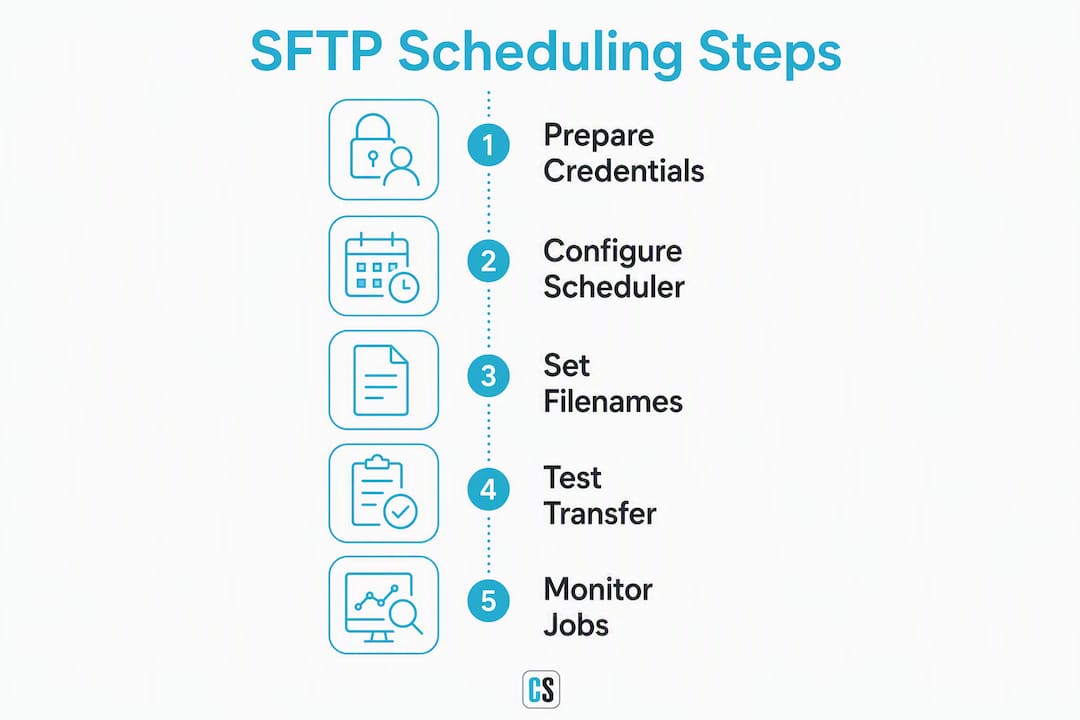
A scheduler that delivers files without a naming strategy will eventually overwrite something important or fill a disk. Both outcomes are avoidable.
Recommended filename patterns:
- Include a UTC timestamp in ISO 8601 format:
sales_20260115_143000.csv. UTC avoids daylight-saving ambiguity; ISO 8601 sorts correctly as a string. - Add a source identifier when multiple reports land in the same folder:
powerbi_sales_20260115_143000.csv. - Avoid spaces, parentheses, and special characters. Underscores and hyphens are safe; everything else risks breaking downstream parsers.
Overwrite policies:
- Most schedulers either overwrite a fixed filename or create a new file per run. Know which behavior your tool uses before go-live.
- If the platform supports append mode, use it only for log-style outputs where accumulation is intentional. For discrete report snapshots, unique filenames are safer.
Rotation and retention:
- Set a retention policy on the destination folder. Keeping 30 days of daily files is reasonable for most reporting use cases; adjust based on compliance requirements.
- For large files, compress to ZIP before transfer. Platforms like Saba/Cornerstone compress automatically above a size threshold and support PGP encryption at the same step.
- Schedule a post-transfer cleanup job to archive or delete files older than the retention window. Do not rely on manual cleanup.
Pro Tip: Make filenames machine-readable from day one. A downstream Python or SQL job that parses sales_20260115_143000.csv for the date is far more reliable than one that reads file metadata, which varies by OS and transfer client.
Security best practices for scheduled SFTP delivery

Transport security is table stakes. For sensitive financial or clinical data, it is not enough on its own.
Transport layer:
- Use SFTP (SSH File Transfer Protocol) exclusively. Plain FTP sends credentials in cleartext; never use it for scheduled report delivery.
- Restrict the cipher suite and MAC algorithms on the server side. Disable legacy algorithms like
arcfour,3des-cbc, andhmac-md5. Modern OpenSSH defaults are reasonable, but audit them against your organization's security policy. - Verify host keys on every new connection. A host key mismatch should fail the job, not be silently accepted.
File-level encryption:
- For regulated data (HIPAA, SOX, PCI-DSS), add PGP/GPG encryption before the file leaves the scheduler. Transport encryption protects the channel; file encryption protects the payload at rest on the destination server. Saba/Cornerstone's SFTP scheduling exposes PGP encryption as a selectable option at schedule configuration time.
- Store the recipient's PGP public key in the same secrets manager as the SFTP private key.
Secrets management and key rotation:
- Rotate SFTP private keys on a defined schedule, typically every 90 days or after any personnel change on the team with key access.
- Never embed credentials in scripts or configuration files checked into version control. Pull them from HashiCorp Vault, AWS Secrets Manager, or Azure Key Vault at runtime.
- Log all transfers server-side. The SFTP server's transfer log is your audit trail; make sure it captures timestamp, username, filename, and transfer size.
Operational hardening:
- Apply chroot jails to SFTP accounts so a compromised credential cannot traverse the server's directory tree.
- Enable alerts on consecutive failed deliveries. Three failures in a row usually signals a credential or network change, not a transient error.
Testing, activation, and monitoring before and after go-live
A pipeline that works in testing and fails silently in production is worse than one that never worked, because no one is watching.
Pre-activation tests:
- Test the SFTP connection from the scheduler host using the CLI:
sftp -i key.pem user@sftp.host. Run aputcommand to confirm write access to the target folder. - Check that the SFTP user cannot write outside the designated folder. Try
cd ..and confirm it is blocked. - Verify the SFTP profile is activated in the reporting tool; some platforms require an explicit "test and activate" step before the profile appears in the schedule configuration.
End-to-end test:
- Run the first scheduled job to a test folder. Confirm the file arrives, the filename matches the pattern, the format is correct, and the downstream consumer can parse it.
- Couchdrop recommends testing with CLI
sftp put/getbefore wiring any automation layer on top, which catches permission and path issues before they become scheduler errors.
Monitoring:
- Enable server-side transfer logs and route them to your SIEM or log aggregation tool.
- Configure failure notification emails in the scheduler. Every major platform supports this; use it.
- Add a low-volume heartbeat schedule (a small test file, daily) to a monitoring folder. If the heartbeat stops arriving, the pipeline has a problem even if no production job has failed yet.
Pro Tip: Keep the schedule in a monitored "burn-in" window for the first 72 hours after go-live. Assign an on-call contact for that window. Most production failures happen in the first three days, not after.
Troubleshooting common SFTP scheduling errors
| Error symptom | Likely cause | Immediate fix |
|---|---|---|
Permission denied (publickey) | Wrong key, wrong format, or key not in authorized_keys | Verify key format (OpenSSH/PKCS#8), re-copy public key to server |
Permission denied on file write | SFTP user lacks write access to target folder | Check folder ACLs; confirm chroot is not blocking the path |
Host key verification failed | Server host key changed or known_hosts not populated | Run ssh-keyscan sftp.host >> known_hosts and verify fingerprint |
Algorithm negotiation failed | Client/server cipher mismatch | Check server sshd_config for enabled algorithms; update client config |
No space left on device | Destination disk full | Delete old files, increase quota, or enable retention policy |
Connection refused | Wrong port or firewall blocking | Confirm port with server admin; test with telnet sftp.host 22 |
Authentication failed (password) | Password rotated without updating scheduler | Update credential in scheduler or switch to key-based auth |
Common failure patterns:
- Authentication errors account for the majority of initial setup failures. The root cause is almost always a key format mismatch or a missing
authorized_keysentry. - Permission denied on write is usually a chroot misconfiguration or a folder created with the wrong owner.
- Algorithm mismatches appear when a legacy SFTP server has not been updated and the client enforces modern cipher requirements.
Pro Tip: Add -v (verbose) to any sftp or ssh command during troubleshooting: sftp -v -i key.pem user@host. The verbose output shows exactly where the handshake fails, which cuts diagnosis time from hours to minutes.
How ChristianSteven Software handles scheduled SFTP deliveries
ChristianSteven Software's product family (PBRS for Power BI, ATRS for Tableau, CRD for Crystal Reports, and SSRS scheduling) includes built-in SFTP delivery as a native destination option. Admins configure the SFTP connection once and reuse it across any number of scheduled reports.
Relevant capabilities for SFTP delivery:
- Native SFTP connector with support for key-based authentication and configurable host/port/path
- Filename templating with date/time variables to prevent overwrites
- Automatic retry logic and failure notification emails
- PGP-compatible encryption support for sensitive file payloads
- Audit logging of every scheduled delivery attempt
- FTP/SFTP destination setup documented for ATRS, with equivalent configuration in PBRS and CRD
Trust signals:
- SOC 2 Type II certified, which means the security controls around data handling and delivery have been independently audited
- More than 20 years of BI automation experience across Power BI, Tableau, SSRS, and Crystal Reports environments
- Consistently high customer satisfaction ratings across enterprise deployments
For admins who want a supported, auditable path instead of hand-built scripts, ChristianSteven Software is worth evaluating before committing to a custom solution.
Compliance and audit logging for scheduled report transfers
Scheduled SFTP transfers that carry financial, HR, or clinical data are not just an IT concern. They are often in scope for SOX, HIPAA, PCI-DSS, or SOC 2 audits, and the audit requirements follow the data.
What auditors typically look for:
- A complete transfer log: timestamp, source system, destination path, filename, file size, and transfer status (success/failure)
- Evidence that access to the SFTP destination is restricted to authorized accounts only
- Key rotation records showing when credentials were last changed and by whom
- Failure and retry records demonstrating that failed deliveries were detected and resolved
Practical logging setup:
- Enable verbose logging on the SFTP server (
LogLevel VERBOSEin OpenSSH'ssshd_config). This captures the subsystem commands (put, get, rename) in addition to connection events. - Route SFTP logs to a centralized log management system (Splunk, Elastic, or equivalent) with a retention period that matches your compliance framework. SOX typically requires seven years; HIPAA requires six.
- Tag log entries with the report name and schedule ID so you can reconstruct the delivery history for a specific report during an audit.
Retention and immutability:
- Store transfer logs in a write-once location or a log management system with tamper-evident controls. A log that can be edited is not an audit log.
- Keep file manifests (filename, hash, transfer timestamp) alongside the files themselves so you can verify that what arrived matches what was sent.
Compliance requirements do not change the technical steps for SFTP scheduling, but they do change the documentation and retention obligations around every transfer. Build the logging infrastructure before go-live, not after the first audit finding.
Key Takeaways
Scheduling reports to SFTP reliably requires key-based authentication, timestamped filenames, end-to-end testing, active monitoring, and audit-ready transfer logs before any job goes to production.
| Point | Details |
|---|---|
| Three required elements | Every SFTP schedule needs a configured report, a valid SFTP destination, and an automated delivery frequency. |
| Key-based auth is the standard | Use PKCS#8 or OpenSSH key pairs for unattended jobs; password auth breaks when credentials rotate. |
| Timestamped filenames prevent overwrites | Use ISO 8601 UTC timestamps in every filename pattern to create unique, sortable files on each run. |
| Monitoring is not optional | Configure failure notification emails and a heartbeat schedule before go-live; silent failures are the most damaging. |
| ChristianSteven Software | Provides native SFTP delivery with key-based auth, filename templating, retry logic, and SOC 2 Type II audited controls across Power BI, Tableau, Crystal Reports, and SSRS. |
The part most teams skip until something breaks
The technical steps for SFTP scheduling are well-documented. What is not documented is the operational gap that shows up three weeks after go-live: a job fails at 2 AM, no one gets an alert, and the downstream team discovers the missing file at 9 AM when the dashboard is empty.
The failure is almost never the SFTP configuration itself. It is the absence of a monitoring layer. Teams spend hours getting the connection right and five minutes on alerting. That ratio should be reversed.
The other pattern worth calling out: key rotation drift. A team sets up key-based auth, documents a 90-day rotation policy, and then the person who owns the rotation leaves. Six months later, the keys are 18 months old and no one knows where the private key is stored. A secrets manager with a rotation reminder is not bureaucracy; it is the difference between a 10-minute key swap and a production outage.
For teams running automated SSRS report distribution or any multi-report pipeline at scale, the argument for a purpose-built scheduler over custom scripts comes down to one thing: built-in retry logic and audit logging. A Python script with paramiko will work until it does not, and when it fails, the log is whatever you remembered to print. A scheduler with native SFTP support logs every attempt, retries on failure, and sends an alert. That is the operational difference.
ChristianSteven Software automates your SFTP report pipeline end to end
Hand-built scripts get the job done once. ChristianSteven Software keeps it done, every run, with built-in retry logic, failure alerts, and a full audit trail that satisfies SOC 2 and enterprise security reviews.

PBRS for Power BI, ATRS for Tableau, and CRD for Crystal Reports each include native SFTP delivery with key-based authentication, filename templating, PGP encryption support, and configurable schedules down to the minute. No custom code, no silent failures, no manual intervention. The same platform that generates the report delivers it, logs the transfer, and alerts your team if anything goes wrong.
If you're ready to replace fragile scripts with a supported, auditable pipeline, start with PBRS for Power BI exports or explore the full product lineup at ChristianSteven Software.
Useful sources and official docs
- BMC Helix: Scheduling Reports for Automatic Distribution — UI field reference for server, port, username/password, and directory when scheduling to SFTP.
- Wisetail: Scheduled Report Delivery via SFTP — Covers role requirements and the profile test/activation step before SFTP scheduling is available.
- Saba/Cornerstone: Scheduling Report Output to SFTP — Documents CSV export, ZIP compression, subfolder behavior, and PGP encryption options.
- Couchdrop: Automate SFTP Report Distribution — Explains the automation pattern (SFTP server + rules + post-transfer actions) and CLI testing recommendations.
- OneTrust: Sending Scheduled Reports to SFTP Servers — Integration workflow instructions for configuring a scheduled report to deliver to a defined SFTP server.
- ChristianSteven Software: ATRS FTP/SFTP Destination Setup — Step-by-step configuration reference for SFTP destinations in ATRS.
FAQ
How do you automate SFTP file transfers for reports?
Configure a reporting tool or scheduler with the SFTP destination (host, port, path, credentials) and set a recurring delivery frequency. Use key-based authentication and timestamped filenames so the job runs unattended without overwriting previous files.
Is SFTP still the standard for scheduled file delivery in enterprise environments?
Yes. SFTP (SSH File Transfer Protocol) remains the dominant protocol for secure automated file exchange because it encrypts both credentials and data in transit over a single TCP connection, typically port 22.
How do you send report data to an SFTP server?
Select SFTP as the delivery destination in your reporting tool, enter the host, port, username, and key or password, define the destination path and filename pattern, and set the schedule. Platforms like Holistics, BMC Helix, and OneTrust all expose this as a native schedule type.
Can ChristianSteven Software deliver Power BI or Tableau reports to SFTP automatically?
Yes. PBRS for Power BI and ATRS for Tableau both include native SFTP delivery with key-based authentication, filename templating, retry logic, and failure alerting, without requiring custom scripts or manual intervention.
How often should SFTP keys be rotated for scheduled report jobs?
Rotate private keys every 90 days as a baseline, or immediately after any personnel change involving team members who had key access. Store keys in a secrets manager with rotation reminders to prevent drift.