

SSRS generates a report when the report server renders a published paginated report with its data and parameters, either on demand or on a schedule through a subscription. For one report going to one list of people by email or file share, native subscriptions are enough. The condition that changes the answer is personalization at scale: once each recipient needs their own filtered version, or delivery has to reach more places than email and a file share, you need data-driven subscriptions (an Enterprise edition feature) or an automation layer such as PBRS.
This guide walks through the whole path: how a report gets built and rendered, how to set up and manage subscriptions, what breaks delivery, and how to decide when the built-in tools no longer fit.
Table of Contents
- One scenario for the whole article
- How SSRS generates a report
- What a subscription does
- Before you create a subscription: prerequisites
- Creating a standard subscription, step by step
- Managing subscriptions after launch
- When native SSRS is enough
- What justifies another approach
- Where PBRS fits
- Our perspective
- Your next decision
- FAQ
One scenario for the whole article
To keep this concrete, we'll use an illustrative scenario (not a customer story). A regional distributor has 40 branches. Every Monday at 7:00 AM, each branch manager needs last week's sales and open-orders report, filtered to their own branch, as a PDF in their inbox. The finance director needs the combined version as an Excel file in a shared folder by 8:00 AM. The BI team is two people and does not want to run reports by hand.
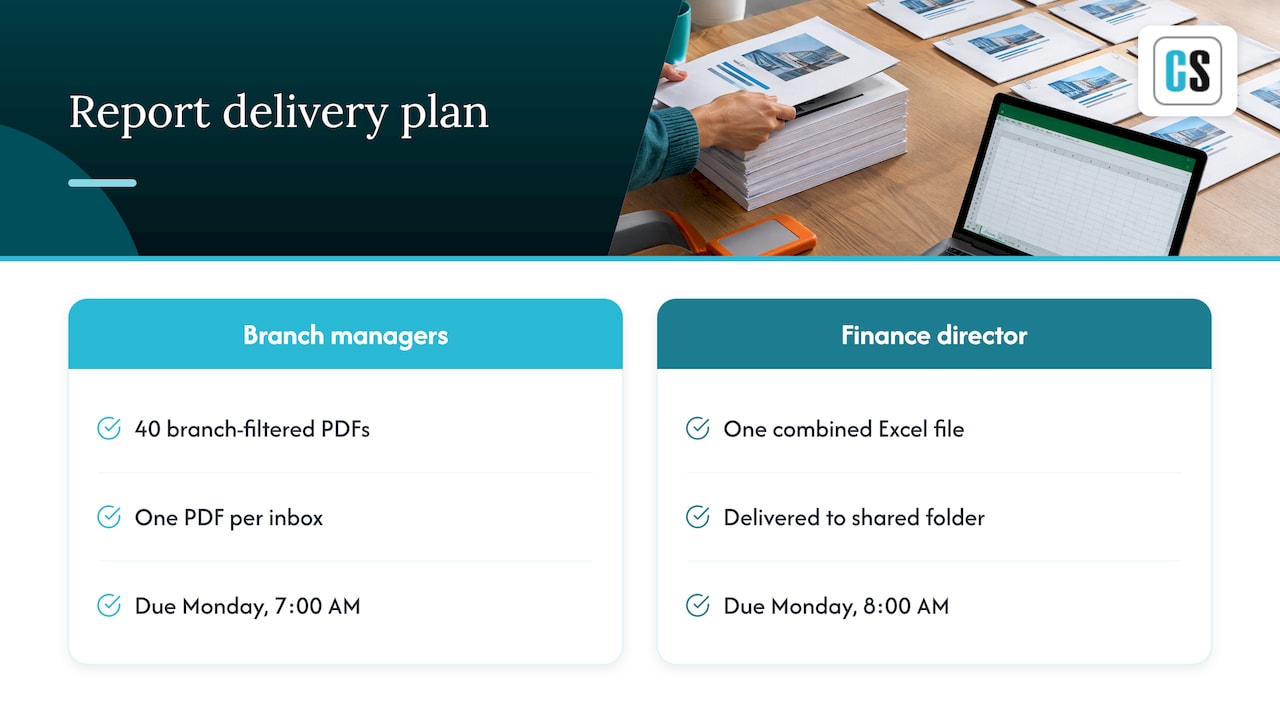
We'll return to this report at each decision point and show what each approach does with it.
How SSRS generates a report
SSRS report generation has three stages.
- Authoring. An analyst designs a paginated report, a fixed-layout report built for printing and exporting, in Report Builder or in Visual Studio with SQL Server Data Tools. The result is an RDL file (report definition language) holding the layout, the dataset queries, and the parameters.
- Publishing. The RDL file is deployed to the report server, where it lives in the report server database alongside its data source and its permissions.
- Rendering. When someone opens the report or a subscription fires, the report server runs the dataset queries with the chosen parameter values and renders the result into a format: HTML, PDF, Excel, Word, CSV and others.
In our scenario, the report has a single Branch parameter. A manager who opens it in the web portal picks their branch and gets the output on screen. Nothing is automated yet: a person has to remember to open it, pick a value and export it.
If you want a refresher on the product itself, our overview SSRS Reports: Everything You Need To Know covers the basics.
What a subscription does
A subscription tells the report server to render a report on a schedule and deliver the output. You choose the delivery method, the format, the parameter values and the schedule. SSRS has two kinds.
| Standard subscription | Data-driven subscription | |
|---|---|---|
| Recipients | A fixed list you type in | Pulled from a query at run time |
| Parameters | One set of values per subscription | Values can differ per recipient |
| Edition | Available in Standard and Enterprise | Requires Enterprise edition |
| Fit for the scenario | One company-wide summary to finance | One branch-specific PDF per manager |
With standard subscriptions, our 40-branch scenario means creating 40 separate subscriptions, one per branch, each with its own parameter value and recipient. That works, but every new branch, new manager or changed email address is a manual edit. A data-driven subscription replaces those 40 with one: a query returns branch, manager email and format for each row, and the report server generates one file per row.
One trap worth knowing: subscriptions are disabled when a report uses user information such as User!UserID, because there is no interactive user when the schedule fires. Build the report to take the branch as an explicit parameter instead.
We go deeper on the data-driven mechanics in SSRS Data-Driven Subscriptions: A Developer's Complete Guide.
Before you create a subscription: prerequisites
Most failed subscriptions fail on setup, not on the report. Check these first.
- SQL Server Agent must be running. Each subscription schedule creates a SQL Server Agent job in the ReportServer job category, named with the schedule's GUID. If Agent is stopped, subscriptions stop firing.
- Email delivery needs SMTP configured. In Reporting Services Configuration Manager, SSRS supports three authentication options: no authentication, a username and password for SMTP, or the report server service account over NTLM.
- File share delivery needs write access. The credentials you give the subscription must be allowed to write to the target folder.
- Stored credentials. Subscriptions run unattended, so the report's data source must use stored credentials rather than prompting for them. A missing stored credential or role permission is a common reason a subscription cannot be created at all.
Creating a standard subscription, step by step
Here is the routine for the finance director's Monday Excel file.
- Open the report in the web portal and choose to create a subscription for it. Pick the report you published, not a copy in someone's personal folder, so permissions stay predictable.
- Choose the delivery method. Email for the inbox, or a Windows file share for the shared-folder copy. For the finance file, use the file share and enter the UNC path and an account with write access.
- Set the format. Excel for the finance director. Pick the format the recipient actually works in, because the PDF and Excel renderers paginate differently.
- Set parameter values. For a company-wide view, choose the all-branches value. Where this goes wrong: a parameter left on its default will quietly deliver the default.
- Set the schedule. Weekly, Monday, 7:00 AM. Schedules use the report server's local time, so confirm the server's time zone before promising anyone a delivery time.
- Save, then test. Use a one-time schedule a few minutes out and check that the file actually lands.
The test matters. Saved SMTP settings do not prove delivery: you also need sender permission on the relay, outbound SMTP allowed from the report server and valid recipient addresses. A local SMTP receiver is a safe way to confirm SSRS handed the message off before you point it at production.
For a screen-by-screen version, see our SSRS Scheduled Report Setup and SSRS Report Scheduling: A Complete Enterprise Guide.
A limit in the schedule editor
The SSRS schedule editor has no daily end-time control. If a report should go out only between 9 AM and 5 PM, you create separate subscriptions, one per send time, each with its own schedule. For a daily or weekly report this never comes up. For an intraday operations report, it multiplies your subscription count quickly.
Managing subscriptions after launch
Creating subscriptions is the easy part. Keeping hundreds of them accurate is where the hours go.
Monitor status, not Agent history. Agent job history does not reflect delivery status. The reliable indicator is the LastStatus column in the ReportServer.dbo.Subscriptions table. A common monitoring pattern alerts on any subscription whose status is not a successful mail send, a new subscription or rsSuccess, as described in this DBA guide. The same guide notes that execution log entries are kept 60 days by default, and that the ExecutionLog3 view is the one to query, with request type 1 marking subscription runs.
Administer in bulk with PowerShell. Through the ReportService2010 web service, administrators can list subscriptions, change an owner, delete, enable or disable them. Changing the owner is the fix for subscriptions left behind by a disabled domain account, a frequent cause of silent failures after staff leave. Enable and disable arrived in SSRS 2016.
Troubleshoot by symptom.
| Symptom | Usual cause |
|---|---|
| Subscription never runs | SQL Server Agent stopped, or the schedule is disabled |
| Report runs but no email arrives | SMTP, relay or delivery extension failure |
| Cannot create the subscription | Missing stored credentials or role permissions |
The symptom-to-cause pairs above come from a practitioner troubleshooting table. Our own walkthrough, 5 Steps to Fix SSRS Subscription Failures for BI Admins, covers the fixes in order.
In the scenario, picture Monday at 7:05 AM: 38 managers have their PDFs and two don't. With native tools, someone queries the status column, finds the two failed rows, works out why, and re-runs them. That is the manual monitoring load you are signing up for.
When native SSRS is enough
Stay with built-in subscriptions when most of these are true:
- You deliver a handful of reports to fixed lists.
- Email and file share cover every destination.
- Recipients all get the same content, or you have Enterprise edition for data-driven subscriptions.
- A DBA already watches
LastStatusand the Agent service. - Nobody needs a delivery trail beyond the execution log.
If that describes you, set up what's above, add a status alert and move on. There is no reason to add software.
What justifies another approach
The requirement that tips the decision is one of these:
- Personalization without Enterprise edition. Per-recipient files from one definition are tied to Enterprise in SSRS, and moving from Enterprise to Standard removes that option even when the database is restored intact.
- More destinations. Cloud storage, a database, collaboration tools or SharePoint, beyond email and a file share. Our SharePoint delivery guide shows how far the native route goes.
- Event-triggered delivery. Running when data lands, not at a fixed hour.
- Monitoring and error handling you don't have to build. Retries and alerts instead of custom queries against the report server database.
- A mixed estate. SSRS, Power BI and the same people asking for both.
On that last point, planning matters: SSRS 2022 is described as the final SSRS version, with paginated reporting continuing in Power BI Report Server. Whatever you automate should follow your reports across that move.
Where PBRS fits
PBRS automates report scheduling, export and distribution for SSRS, Power BI Service and Power BI Report Server, including paginated reports. In the scenario, it takes the 40-branch Monday run: reports run on a schedule or when an event occurs, report bursting generates a version for each branch manager, the finance copy goes out as Excel, and outputs can be bundled and sent to internal or external recipients. Delivery goes to email, cloud, database or collaboration destinations, with automated error handling for runs that fail.
It runs on-premises, so your report data stays on your infrastructure. If you want to see it against your own report, take a look at PBRS for Power BI and SSRS.
If you also want one place where users open dashboards and KPIs without asking for a file, IntelliFront BI is our self-hosted portal for that, running on your own infrastructure.
Our perspective
Most teams we talk with don't have a report generation problem. SSRS renders a report well. They have a delivery problem: the report exists, but getting the right version to the right person at the right time takes someone's Monday morning.
We build PBRS around that gap. Reporting teams should control when a report runs, what each recipient sees and where each file goes, without writing scripts or chaining workflows together. Schedules can be time-based or event-based, and bursting gives every recipient their own version from one report.
Our advice is practical. Use native subscriptions while they cover your needs. When you find yourself adding the fortieth near-identical subscription, or writing monitoring queries against the report server database, that is the moment to hand delivery to software built for it and keep your analysts on analysis.
Christian Ofori-Boateng
Your next decision
Count the subscriptions you maintain and how many differ only by a parameter or a recipient. Then check your edition. If you're on Standard with dozens of near-duplicates, or you need destinations beyond email and a file share, shortlist PBRS and test it on your own Monday report. If you're not, apply the prerequisites and status monitoring above and leave the setup as it is.
FAQ
What is the difference between an SSRS subscription and a schedule?
A schedule defines when something runs. A subscription defines what runs, in which format and where it goes. Each subscription schedule also creates a SQL Server Agent job, which is why a stopped Agent service silently halts delivery.
Can I send a different SSRS report to each recipient?
Yes, with a data-driven subscription, which needs Enterprise edition. It reads recipients and parameter values from a query and produces one output per row. Without Enterprise, you either create one standard subscription per recipient or use PBRS, which handles report bursting for SSRS reports.
Why did my SSRS subscription not send?
Check three things in order: that SQL Server Agent is running, that the schedule is enabled, and that SMTP or file share credentials are valid. Then read the LastStatus column for the subscription in the report server database, which shows the delivery result more reliably than Agent job history.
How do I disable a subscription without deleting it?
Since SSRS 2016, administrators can enable and disable subscriptions through the ReportService2010 web service, for example with PowerShell. That keeps the configuration while stopping runs, which suits subscriptions owned by someone who has left.